


Print the design. Keep the context.

Your team works together in Flux. Regulatory certification often calls for printed documentation. The updated PDF exports give those pages consistent frames, title blocks, project details, and a QR code back to the live project. Print schematics and PCB drawings, or turn a project's mechanical requirements into a PDF. The new menus put these exports in the view you use, alongside table downloads for work in external tools.
A printed record, connected to the project
A printed drawing needs context: what project it belongs to, what the page shows, and where to find the design. Flux brings that context onto the page with a shared PDF presentation across schematics, PCB drawings, tables, and project documents.
The title block identifies the project and page, with sheet numbering and the export date. Project details include authors and who exported the file. A source link and QR code point back to the live project in Flux. The PDF is the printed record. Your team continues to collaborate in the project.
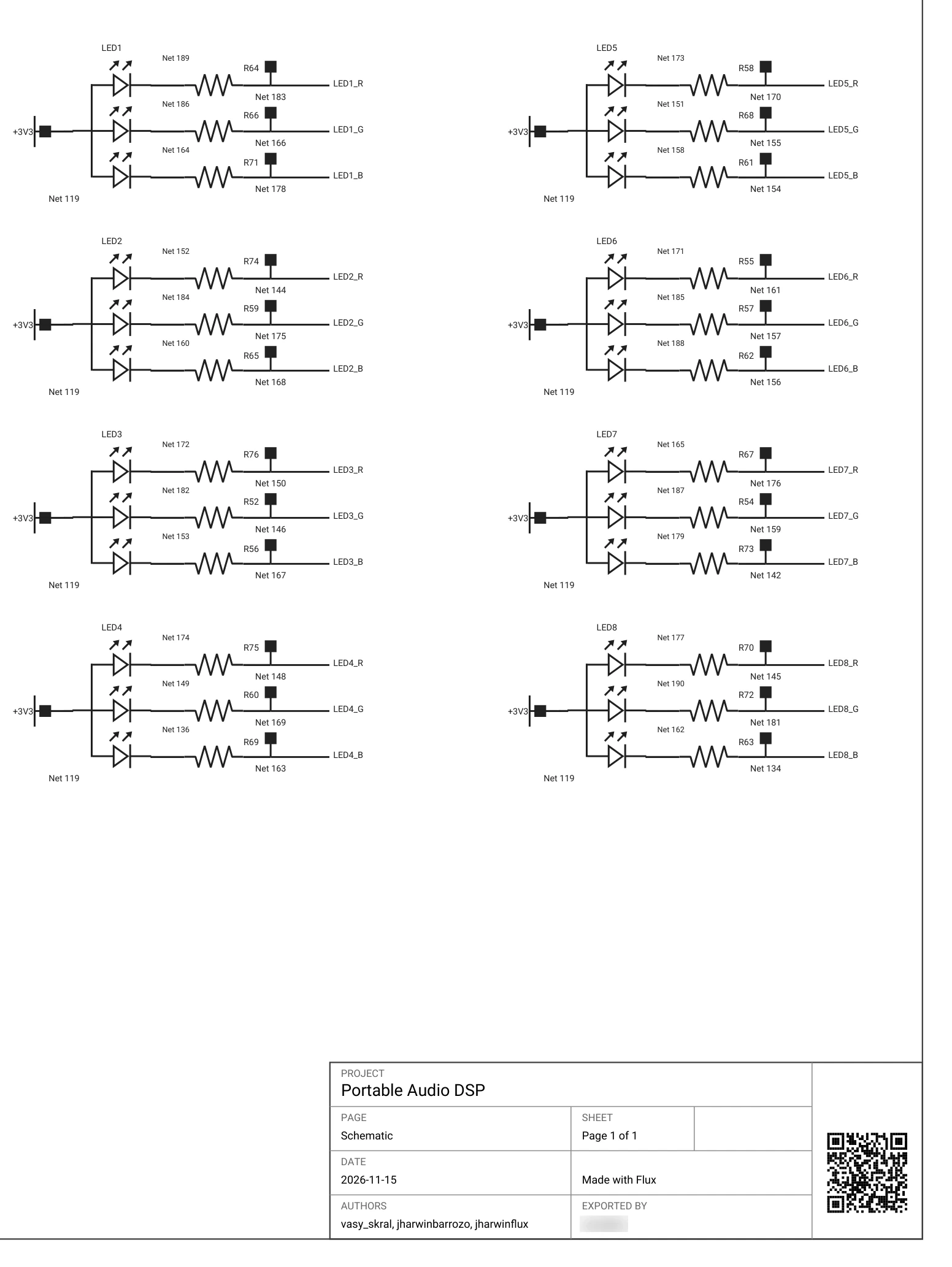
For a device's electronics, print the schematic and PCB drawings. PCB layer pages use a shared scale, with a layer title and title block on each page. Stackup pages follow the layer pages, so the printed set includes both the individual layers and the board's construction.
For its mechanical design, print the requirements that define the enclosure: mounting constraints, connector clearances, materials, and other details recorded in a project document. Those requirements can sit beside the electrical drawings in the printed record, with the same project identity and a path back to the live design.
See the references for mechanical drawings and exports and fabrication drawings.
Download the table you see
The Components, Nets, BOM, and Pins tables each have a three-dot menu. Use Copy contents, or download the table as CSV, Excel (.xlsx), Markdown, or PDF.
The output follows your visible columns and current sort order. Set up the table in Flux, then choose the format for your spreadsheet, text document, or printed record. The BOM table uses this same table-download workflow.

Find the controls in the project tables reference.
Copy the current canvas
Schematic, Layout, 3D View, and Symbol each have a Download canvas menu. Choose Copy contents to put an image of the current view on your clipboard.
In Schematic and Layout, you can also download Markdown (.md) or choose Copy as Markdown. Schematic Markdown includes components by sheet, schematic drawings, and nets with their connected pins. Layout Markdown includes part placement with position, rotation, and board side, plus stackup details, board drawings, and nets. Both keep the project details with the design data.
Frame the circuit, board, or enclosure detail you want to capture, then copy that view. The menu sits with the canvas, so the action starts from the design you are looking at.
The data portability reference covers the copy and download controls.
Print project documents
Project documents have their own copy and download controls. Download a document in its source format, Markdown or HTML, or choose PDF for a printable version with searchable text.
Use this for the mechanical requirements, enclosure specifications, or design notes in your project. The PDF keeps those written details connected to the same project as the schematic and board drawings.
See the project files reference for document controls.
Ask for the export you need
When your certification lab, contract manufacturer, or quality team needs a different file layout, ask the Flux agent in chat. It builds the file you describe from the live project. Ask for a BOM with your own columns and order, or a PDF with only the schematic sheets or PCB layers a review needs.
Ask the Flux agent for a schematic or part symbol as PDF or SVG, a JEDEC JEP30 part model as XML, or a project document as PDF.
The same approach works for mechanical design. Ask for an enclosure drawing package alongside the board drawings, or a mechanical requirements document laid out to your team's template. Describe the content and format you need, and let Flux build the export around that request.
Keep the context on paper
Open the view or document you want to print, choose PDF, and keep the project details with the page. When you return to the design, follow the source link or scan the QR code to open the project in Flux.
FAQ: PDFs and view-specific menus
Yes. Ask the Flux agent in chat to build a file from the live project with the columns, sheets, layers, or document layout your team needs.
Use the three-dot menu in Components, Nets, BOM, or Pins. On Schematic, Layout, 3D View, or Symbol, use Download canvas to copy an image. Schematic and Layout also offer Markdown download and Copy as Markdown. Project documents have their own menu with copy and download controls.
The title block identifies the project and page, with sheet numbering and the export date. Project details include authors, who exported the file, and a source link and QR code back to the project.
The QR code opens the live project in Flux. The source link in the PDF points to the project too.
Related Content

Circle it. Ask Flux. Markup mode is here

AI Moving a Mouse in Altium Is the Worst Way to Design a PCB

Your PCB Fabrication Drawing Now Comes From the Design

The Future of AI Isn't Better Prompting. It's Agents That Drive Their Own Work.

AI Gives You the Power of an Entire Supply-Chain Team

Streamline Component Research with AI
Let’s start building.

Let’s build your idea together. All you need to do is describe what you want to make, or what problem you want to solve. Flux will work with you to make it a reality.
