WiFi Camera Project Overview
Thought for 1 min 27 sec
This is the most relevant entry I found related to Auto-Layout:
“Simplify your PCB design process by using Auto-Layout, an AI-powered feature that automatically routes your design.
Overview
Auto-Layout leverages Flux's Copilot AI to handle the time-intensive task of routing your PCB. This tool is ideal for simple to medium-complexity boards and can significantly accelerate your workflow. However, Auto-Layout has a few limitations to keep in mind, including credit consumption, iteration management, and time requirements.
This guide helps you get started, navigate the process, and make the most of Auto-Layout while avoiding common pitfalls.
Getting Started
Initiate Auto-Layout
-
Make sure your schematic and component placement are finalized.
- Adjust any specific constraints for your board, such as dimensions, component orientations, or keep-out zones. Learn more.
- Confirm your credit allowance before starting. Auto-Layout consumes Copilot credits per job based on complexity. Learn more.
-
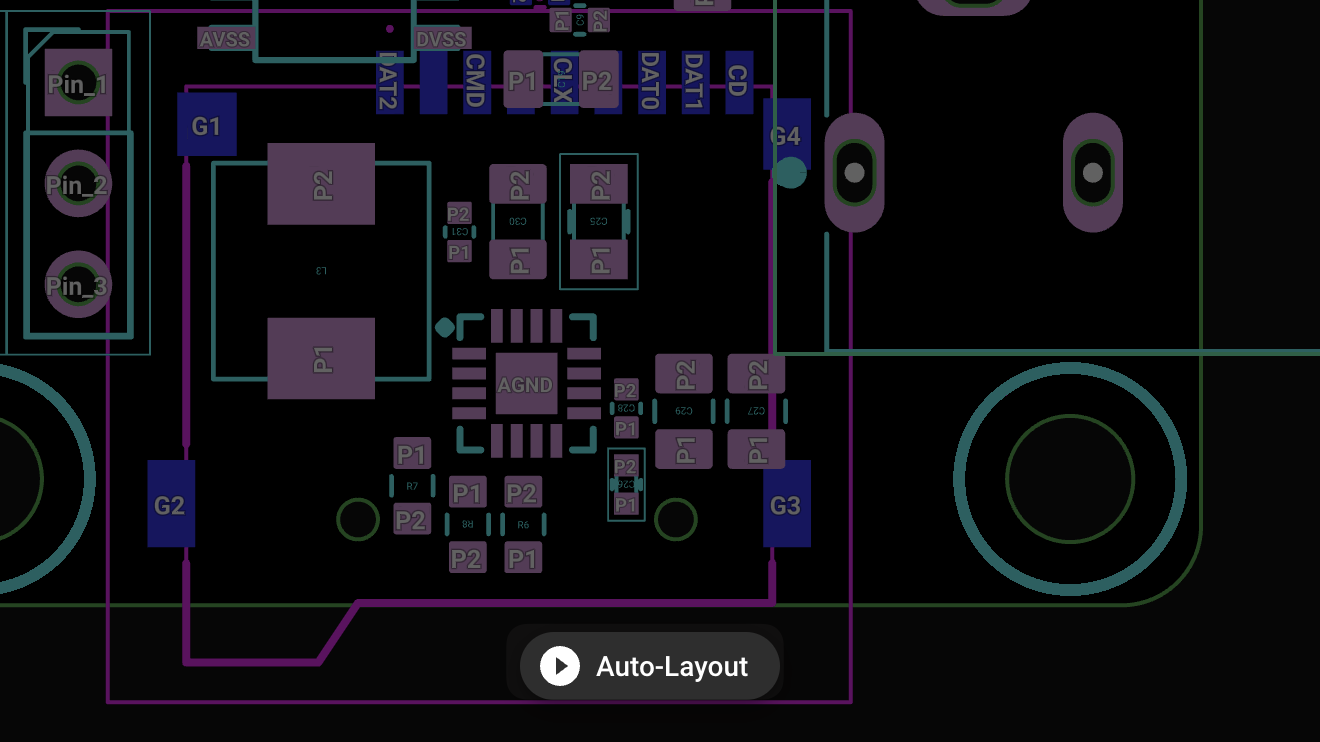
Click on the auto-route button at the bottom page.”
Image
Quick check: Do you see the “auto-route” button at the bottom of the PCB page as shown, and do you have Copilot credits available? If yes but it’s still disabled, tell me exactly what you see on the button so I can help further.
Describe button state
Ask about requirements
Mention credits and view
Clarify design status
Ask about project type


Welcome 👋
Flux helps you build PCBs faster with an AI teammate!
Create your account to collaborate, stay updated, fork your own version, and get instant answers from our AI agent.