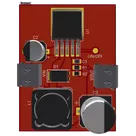
For the LM2596 ON/OFF pin, connect it so the regulator is enabled by default.
The ON/OFF pin is a control pin on this regulator family, not a power or output pin, so it should be treated as part of the control network rather than tied into the switch node or output path
In your HAT design, if you do not need remote shutdown, the practical connection is to tie ON/OFF to ground / Power_GND so the buck converter stays on.
Do not leave it floating.
If you want a manual enable/disable later, connect ON/OFF to a switch or transistor that can pull that pin high/low, but keep it referenced to the power-side ground, not the Pi isolated ground plane.
Given your isolation requirement:
Connect LM2596 ON/OFF to Power_GND
Keep it on the 24 V / buck converter side
Do not route it across the opto-isolation barrier
If you want, I can also show you the full fixed 5 V LM2596 pin-by-pin connection list for your design.
I don’t see any uploaded-file evidence showing that the LM2596 ON/OFF pin is already connected somewhere in your design. The file search results returned only general guidance files, not a schematic snippet or net listing for that pin, so I can’t point to an existing connection from the uploaded material
So the direct answer is:
If you’re asking “where should I connect it?” → connect ON/OFF to the power-side ground so the regulator stays enabled.
If you’re asking “where did you connect it in the design?” → I did not verify an actual placed connection from the uploaded files; there isn’t enough file evidence to claim it is already wired anywhere
For your board, that means:
LM2596 ON/OFF -> Power_GND
Keep it on the buck / 24 V side
Do not connect it to the isolated Pi ground plane
Do not leave it floating
If you want, I can next help you identify the exact LM2596 pin number for ON/OFF from the datasheet and give you the full pin-by-pin connection map.
To get started with Flux, you can follow these general steps:
Create a Flux Account: Sign up for an account on Flux.ai.
Migrate Projects: If you have existing projects in tools like EasyEDA or KiCad, you can follow the migration tutorials to bring them into Flux. Here are links to the tutorials for
[1] and
[2].
Learn the Features: To get a comprehensive look at Flux’s features and how to integrate them into your workflow, check out the full documentation[3].
Using the Simulator: To learn how to use the simulator within Flux, you can refer to the available tutorials[4].
Hands-On Practice: Start by creating a new project and experimenting with the schematic and PCB layout tools. Add components from the library, connect them, and simulate your designs.
Community and Resources: Engage with community resources, participate in discussions, and stay updated with Flux's news and updates.
Is there a specific aspect of using Flux you want to dive deeper into? Let me know!
Wirelessly connects nets on schematic. Used to organize schematics and separate functional blocks. To wirelessly connect net portals, give them same designator. #portal
Wirelessly connects power nets on schematic. Identical to the net portal, but with a power symbol. Used to organize schematics and separate functional blocks. To wirelessly connect power net portals, give them the same designator. #portal #power
This project is a DC-DC Buck converter based on the LM2596 IC. It is designed to step down the input voltage from 12V to a regulated output of 5V #Buck#LM2596#project
Properties
Properties describe core aspects of the project.
Pricing & Availability
Distributor
Qty 1
Digi-Key
$1.89–$3.76
LCSC
$2.96
Mouser
$3.70
Controls
Welcome 👋
Flux helps you build PCBs faster with an AI teammate!
Create your account to collaborate, stay updated, fork your own version, and get instant answers from our AI agent.
nnnnnzz
copilot