Chat
Welcome to Flux
Treat Flux like your intern. Tell it what you'd like to build and it'll get to work. You can also ask it questions, brainstorm ideas, and teach it your preferences. Learn More
Explain project
Write a project description
Find schematic issues
Create a test plan
Simulate a circuit
Prepare for Manufacturing
Component Selection Workflow
New Subsystem Wizard
Write I2C initialization code
Generate firmware skeleton
U2
@copilot, develop an FMEA (Failure Mode and Effects Analysis) report in a table ...

@copilot, develop an FMEA (Failure Mode and Effects Analysis) report in a table format that analyzes the systems schematic, each unique component specification, and operational parameters. It should identify critical failure modes, assess their impact, and recommend mitigation actions based on severity, occurrence probability, and detectability. Include columns such as: process step, potential failure mode, potential failure effect, S, O, D, RPN, Action Recommended, and any other you see fit.
1y
Creating an FMEA report involves several steps. Given the project description and components of your WiFi Camera with Motion Detection design, I'll draft a basic FMEA table for you.
FMEA Table
Table
| Process Step | Potential Failure Mode | Potential Failure Effect | Severity (S) | Occurrence (O) | Detectability (D) | Risk Priority Number (RPN) | Action Recommended |
|---|---|---|---|---|---|---|---|
| Power Supply (+5V, +3V3) | Voltage regulator failure | System power loss | 9 | 6 | 4 | 216 | Use voltage regulators with overcurrent and thermal protection |
| ESP32-CAM | Communication failure | Loss of image/data transmission | 8 | 5 | 3 | 120 | Implement robust error-handling and retry logic |
| HC-SR501 | False trigger or no detection | Erratic camera activation | 7 | 4 | 3 | 84 | Calibrate PIR sensor; add filtering in software |
| Transistor Q1 (S8050) | Short circuit or open circuit | Inability to control current | 7 | 4 | 4 | 112 | Add current limiting resistors; consider a different transistor |
| Resistor R3 (1k) | Increased resistance | Reduced current flow | 5 | 3 | 5 | 75 | Use precision resistors with low temperature coefficients |
| Resistor R4 (10k) | Decreased resistance | Excessive current flow | 6 | 3 | 5 | 90 | Inspect and select quality-controlled resistors |
| Connector J1/J2 | Poor connection | Intermittent functionality | 8 | 4 | 4 | 128 | Ensure proper connector assembly and use locking connectors |
| Net Connections | Signal loss or noise | Degraded performance | 7 | 3 | 3 | 63 | Use shielding and maintain good routing practices |
- Severity (S): Rating from 1 to 10 based on the impact of the failure mode (1 being least severe, 10 being most severe).
- Occurrence (O): Rating from 1 to 10 based on the probability of failure occurrence (1 being least likely, 10 being most likely).
- Detectability (D): Rating from 1 to 10 based on the ease of detecting the failure (1 being easily detectable, 10 being difficult to detect).
- Risk Priority Number (RPN): Calculated as $RPN = S \times O \times D$. This number helps prioritize which failure modes to address first.
- Action Recommended: Suggestions for mitigating or preventing this failure mode.
This FMEA table serves as a preliminary analysis. Let me know if you have specific parameters that need adjusting or if there's anything else you'd like to add!
1y
3
create a detailed step by step plan table for ESP32-CAM1 to verify its functiona...
1y
Here's a detailed step-by-step plan in a table format to verify the functionality of the ESP32-CAM1 module:
Table
| Step | Description | Expected Result |
|---|---|---|
| 1 | Power Supply Verification | Ensure the module is supplied with 5V and 3.3V power as required. |
| 2 | Check Connections | Verify connections for GND (common ground) and VCC to avoid any loose or incorrect connections. |
| 3 | Flash Test Firmware | Flash a test firmware using an appropriate IDE (Arduino IDE or ESP-IDF) and USB-TTL converter. |
| 4 | Open Serial Monitor | Open the serial monitor to check and confirm the module's boot log and any debug messages. |
| 5 | Configure WiFi Settings | In the test firmware, configure and input the SSID and password for your Wi-Fi network. |
| 6 | Upload Code | Upload the code and check for any upload errors. The module should boot up with the firmware. |
| 7 | Scan for WiFi Access Points | Allow the module to scan and print available WiFi access points to verify WiFi functionality. |
| 8 | Connect to WiFi Network | Connect the ESP32-CAM to the preset WiFi network and check for successful connection via serial monitor. |
| 9 | Ping Test | Ping an external server (such as google.com) to verify connectivity and response time. |
| 10 | Capture Camera Feed | Access camera feed using the IP address shown in the serial monitor in a web browser. It should display a video stream. |
| 11 | Verify Camera Quality | Observe the camera feed and verify the image quality and resolution settings. |
| 12 | Validate Additional Pin Functions | Test additional GPIO pins using simple LED blink or I/O operations to ensure they function correctly. |
| 13 | Test Reset Functionality | Press the reset button on the module and observe the reboot sequence for any errors or issues. |
| 14 | Check for Heat and Stability | Observe the module for any overheating or stability issues during extended use. |
This systematic plan should help in thoroughly verifying the functionality of the ESP32-CAM module, leading to successful integration into a project. Let me know if you have any questions or need further assistance!
1y
1
C1
Capacitance
Capacitance
R3
Resistance
1kΩ
R4
Resistance
10kΩ
J1
Q1
ESP32-CAM1
J2
Reviews
 A generic fixed inductor suitable for rapid circuit topology development. The footprint automatically adapts based on the selected package, supporting standard SMD sizes (e.g., 0402, 0603, 0805) as well as well-known inductor packages such as SDR1806, PA4320, SRN6028, and SRR1260. Standard inductor values: 1.0 nH, 10 nH, 100 nH, 1.0 µH, 10 µH, 100 µH, 1.0 mH 1.2 nH, 12 nH, 120 nH, 1.2 µH, 12 µH, 120 µH, 1.2 mH 1.5 nH, 15 nH, 150 nH, 1.5 µH, 15 µH, 150 µH, 1.5 mH 1.8 nH, 18 nH, 180 nH, 1.8 µH, 18 µH, 180 µH, 1.8 mH 2.2 nH, 22 nH, 220 nH, 2.2 µH, 22 µH, 220 µH, 2.2 mH 2.7 nH, 27 nH, 270 nH, 2.7 µH, 27 µH, 270 µH, 2.7 mH 3.3 nH, 33 nH, 330 nH, 3.3 µH, 33 µH, 330 µH, 3.3 mH 3.9 nH, 39 nH, 390 nH, 3.9 µH, 39 µH, 390 µH, 3.9 mH 4.7 nH, 47 nH, 470 nH, 4.7 µH, 47 µH, 470 µH, 4.7 mH 5.6 nH, 56 nH, 560 nH, 5.6 µH, 56 µH, 560 µH, 5.6 mH 6.8 nH, 68 nH, 680 nH, 6.8 µH, 68 µH, 680 µH, 6.8 mH 8.2 nH, 82 nH, 820 nH, 8.2 µH, 82 µH, 820 µH, 8.2 mH #generics #CommonPartsLibraryjharwinbarrozo16.6k
- A generic fixed capacitor ideal for rapid circuit topology development. You can choose between polarized and non-polarized types, its symbol and the footprint will automatically adapt based on your selection. Supported options include standard SMD sizes for ceramic capacitors (e.g., 0402, 0603, 0805), SMD sizes for aluminum electrolytic capacitors, and through-hole footprints for polarized capacitors. Save precious design time by seamlessly add more information to this part (value, footprint, etc.) as it becomes available. Standard capacitor values: 1.0pF, 10pF, 100pF, 1000pF, 0.01uF, 0.1uF, 1.0uF, 10uF, 100uF, 1000uF, 10000uF 1.1pF, 11pF, 110pF, 1100pF 1.2pF, 12pF, 120pF, 1200pF 1.3pF, 13pF, 130pF, 1300pF 1.5pF, 15pF, 150pF, 1500pF, 0.015uF, 0.15uF, 1.5uF, 15uF, 150uF, 1500uF 1.6pF, 16pF, 160pF, 1600pF 1.8pF, 18pF, 180pF, 1800pF 2.0pF, 20pF, 200pF, 2000pF 2.2pF, 22pF, 220pF, 2200pF, 0.022uF, 0.22uF, 2.2uF, 22uF, 220uF, 2200uF 2.4pF, 24pF, 240pF, 2400pF 2.7pF, 27pF, 270pF, 2700pF 3.0pF, 30pF, 300pF, 3000pF 3.3pF, 33pF, 330pF, 3300pF, 0.033uF, 0.33uF, 3.3uF, 33uF, 330uF, 3300uF 3.6pF, 36pF, 360pF, 3600pF 3.9pF, 39pF, 390pF, 3900pF 4.3pF, 43pF, 430pF, 4300pF 4.7pF, 47pF, 470pF, 4700pF, 0.047uF, 0.47uF, 4.7uF, 47uF, 470uF, 4700uF 5.1pF, 51pF, 510pF, 5100pF 5.6pF, 56pF, 560pF, 5600pF 6.2pF, 62pF, 620pF, 6200pF 6.8pF, 68pF, 680pF, 6800pF, 0.068uF, 0.68uF, 6.8uF, 68uF, 680uF, 6800uF 7.5pF, 75pF, 750pF, 7500pF 8.2pF, 82pF, 820pF, 8200pF 9.1pF, 91pF, 910pF, 9100pF #generics #CommonPartsLibraryjharwinbarrozo1.5M
- A generic fixed resistor ideal for rapid circuit topology development. Its footprint automatically adapts based on the selected package case code—supporting 0402, 0603, 0805, 1203, and many other standard SMD packages, as well as axial horizontal and vertical configurations. Save precious design time by seamlessly add more information to this part (value, footprint, etc.) as it becomes available. Standard resistor values: 1.0 ohm, 10 ohm, 100 ohm, 1.0k ohm, 10k ohm, 100k ohm, 1.0M ohm 1.1 ohm, 11 ohm, 110 ohm, 1.1k ohm, 11k ohm, 110k ohm, 1.1M ohm 1.2 ohm, 12 ohm, 120 ohm, 1.2k ohm, 12k ohm, 120k ohm, 1.2M ohm 1.3 ohm, 13 ohm, 130 ohm, 1.3k ohm, 13k ohm, 130k ohm, 1.3M ohm 1.5 ohm, 15 ohm, 150 ohm, 1.5k ohm, 15k ohm, 150k ohm, 1.5M ohm 1.6 ohm, 16 ohm, 160 ohm, 1.6k ohm, 16k ohm, 160k ohm, 1.6M ohm 1.8 ohm, 18 ohm, 180 ohm, 1.8K ohm, 18k ohm, 180k ohm, 1.8M ohm 2.0 ohm, 20 ohm, 200 ohm, 2.0k ohm, 20k ohm, 200k ohm, 2.0M ohm 2.2 ohm, 22 ohm, 220 ohm, 2.2k ohm, 22k ohm, 220k ohm, 2.2M ohm 2.4 ohm, 24 ohm, 240 ohm, 2.4k ohm, 24k ohm, 240k ohm, 2.4M ohm 2.7 ohm, 27 ohm, 270 ohm, 2.7k ohm, 27k ohm, 270k ohm, 2.7M ohm 3.0 ohm, 30 ohm, 300 ohm, 3.0K ohm, 30K ohm, 300K ohm, 3.0M ohm 3.3 ohm, 33 ohm, 330 ohm, 3.3k ohm, 33k ohm, 330k ohm, 3.3M ohm 3.6 ohm, 36 ohm, 360 ohm, 3.6k ohm, 36k ohm, 360k ohm, 3.6M ohm 3.9 ohm, 39 ohm, 390 ohm, 3.9k ohm, 39k ohm, 390k ohm, 3.9M ohm 4.3 ohm, 43 ohm, 430 ohm, 4.3k ohm, 43K ohm, 430K ohm, 4.3M ohm 4.7 ohm, 47 ohm, 470 ohm, 4.7k ohm, 47k ohm, 470k ohm, 4.7M ohm 5.1 ohm, 51 ohm, 510 ohm, 5.1k ohm, 51k ohm, 510k ohm, 5.1M ohm 5.6 ohm, 56 ohm, 560 ohm, 5.6k ohm, 56k ohm, 560k ohm, 5.6M ohm 6.2 ohm, 62 ohm, 620 ohm, 6.2k ohm, 62K ohm, 620K ohm, 6.2M ohm 6.8 ohm, 68 ohm, 680 ohm, 6.8k ohm, 68k ohm, 680k ohm, 6.8M ohm 7.5 ohm, 75 ohm, 750 ohm, 7.5k ohm, 75k ohm, 750k ohm, 7.5M ohm 8.2 ohm, 82 ohm, 820 ohm, 8.2k ohm, 82k ohm, 820k ohm, 8.2M ohm 9.1 ohm, 91 ohm, 910 ohm, 9.1k ohm, 91k ohm, 910k ohm, 9.1M ohm #generics #CommonPartsLibraryjharwinbarrozo1.5M
- An electrical connector acting as reusable interface to a conductor and creating a point where external circuits can be connected.Terminal
- General Purpose Thick Film Standard Power and High-Power Chip Resistor 47 kOhms ±5% 0.125W, 1/8W Chip Resistor 0805 (2012 Metric) Automotive AEC-Q200 Thick Film Features: - RMCF – standard power ratings - RMCP – high power ratings - Nickel barrier terminations standard - Power derating from 100% at 70ºC to zero at +155ºC - RoHS compliant, REACH compliant, and halogen free - AEC-Q200 compliantjharwinbarrozo1.2M
- 10 µF 16 V Aluminum - Polymer Capacitors Radial, Can - SMD 30mOhm 2000 Hrs @ 105°C #commonpartslibrary #capacitor #aluminumpolymer #radialcanjharwinbarrozo1.2M
- Battery Holder (Open) Coin, 20.0mm 1 Cell SMD (SMT) Tab bate or batt #forLedBlinkjharwinbarrozo700.5k
- A momentary or non-latching switch which causes a temporary change in the state of an electrical circuit only while the switch is physically actuated. SWITCH TACTILE SPST-NO 0.05A 24Vjharwinbarrozo490.7k
- Straight 3 pin 5mm 3-pin Pitch 5mm 15A 1.5 300V Screw terminal block 01x03 #screwblock #connector #commonPartsLibraryjharwinbarrozo537.9k


WiFi Camera with Motion Detection Reference Design
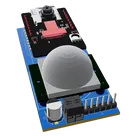
This project is a WiFi Camera with Motion Detection, utilizing ESP32-CAM module and HC-SR501 PIR sensor. The camera is activated by the sensor's output. The system also includes power regulation and communication headers for setup and control.
#WiFi #MCU #PIR #ReferenceDesign #project #ESP32 #camera #referenceDesign #edgeComputing #espressif #template #reference-design
Properties
Pricing & Availability
Distributor | Qty 1 |
|---|---|
Digi-Key | $0.01–$36.00 |
LCSC | $0.00–$0.03 |
Verical | $0.01–$0.01 |
Controls
Welcome 👋
Flux helps you build PCBs faster with an AI teammate!
Create your account to collaborate, stay updated, fork your own version, and get instant answers from our AI agent.
qwertuzu
copilot