DC Motor Control Options

create a avr design for implementing a simple dc motor in embedded c language
401 days
0:01
The response is taking longer than expected. Please try again with a more focused question.
401 days
Podrias decirme donde esta 5V y las tierras en la placa

@copilotPodrias decirme donde esta 5V y las tierras en la placa
2y
Claro, basándome en la descripción del proyecto proporcionada y suponiendo que estás preguntando sobre los pines de alimentación de 5V y tierra (GND) en un Arduino Mega 2560, aquí tienes la información correspondiente a los pines de 5V y GND según la enumeración de tu proyecto:
Para 5V, tienes tres designadores marcados como tales:
- +5V_1
- +5V_2
- +5V_3
Y para tierra (GND), tienes cinco designadores:
- GND1
- GND2
- GND3
- GND4
- GND5
En un Arduino Mega 2560, en la práctica, encontrarás múltiples pines de alimentación de 5V y GND distribuidos en diferentes partes de la placa para facilitar la conexión de componentes. Es importante tener esto en cuenta para la planificación del layout y la distribución de cables en tu proyecto.
Si necesitas ayuda con las conexiones específicas o cómo utilizar estos pines en tu diseño de circuito, no dudes en preguntar.
2y
Someone is typing...
14
inversor con arduino

@copilot inversor con arduino
1y
Claro, puedo ayudarte a diseñar un inversor básico utilizando un Arduino Mega2560. Un inversor, en términos de circuitos electrónicos, toma una entrada y produce una salida opuesta. En el caso más simple, esto podría ser una señal lógica: si la entrada es alta (5V), la salida es baja (0V) y viceversa.
Aquí tienes un ejemplo de cómo diseñar un inversor usando un transistor NPN:
Componentes Necesarios:
- Arduino Mega2560
- Transistor NPN (como el 2N2222)
- Resistencia (1kΩ y 10kΩ)
- Fuente de alimentación (5V)
- Resistencia de 1kΩ: para limitar la corriente del pin de Arduino al transistor.
- Transistor NPN: actuará como el inversor.
- Resistencia de 10kΩ: para asegurarse de que el transistor esté apagado cuando el pin de Arduino esté en estado bajo.
- Conecta el colector del transistor C a la salida a la que quieres invertir la señal.
- Conecta el emisor del transistor E a GND.
- Conecta una resistencia de 1kΩ entre el pin del Arduino y la base del transistor B.
- Conecta una resistencia de 10kΩ entre la base del transistor B y GND.
- Conecta Arduino:Pin (digamos D2) to R1:1.
- Conecta R1:2 to Q1:B.
- Conecta Q1:C to your output line.
- Conecta Q1:E to GND.
- Conecta R2:1 to Q1:B.
- Conecta R2:2 to GND.
Cpp
int inputPin = 2; // Pin de entrada en el Arduino int outputPin = 13; // Pin de salida del transistor void setup() { pinMode(inputPin, INPUT); pinMode(outputPin, OUTPUT); } void loop() { int sensorValue = digitalRead(inputPin); digitalWrite(outputPin, !sensorValue); // Invierte la señal }
En este código, leemos el estado del
inputPin y escribimos el valor invertido en el outputPin. La señal de salida estará invertida respecto a la señal de entrada.Este es un ejemplo sencillo de un inversor utilizando un transistor y un Arduino. Si tienes una aplicación específica o necesitas un diseño más complejo, dime y puedo ajustar las instrucciones y el diseño según tus necesidades.
1y
Someone is typing...
20
Necesito un diseño que mediante dos cables de salida encienda un led rojo y un b...

whaT IS THIS
2y

GHNB
2y

Necesito un diseño que mediante dos cables de salida encienda un led rojo y un buzzer si ambos cables entran en contacto con el agua, y que encienda una luz verde constantemente cuando no haya agua
2y
Someone is typing...
4
How do i add component

@copilot How do i add component
2y
In the Flux.ai environment, you can add a component to your schematic by following these steps:
- Open the "Parts" menu on the left side of the software, which contains a library of components you can use.
- Use the search bar to look for the specific component you desire. You can search by its name, part number, or keyword.
- Once you've found the component you need, click on it and it will appear on your mouse cursor.
- Position the part where you want it on the schematic workspace, and click to place it.
- If you need to rotate or flip the component, use the right-click menu or the available toolbox options.
If the part you need is not available in the library, you may need to create a custom component. If you want to know how to do that, I can gladly provide more information.
Please also be aware that if you want to insert specific passive components like resistors, capacitors, or inductors, you probably want to choose the ones with desired values - be sure to check their parameters before inserting into your design.
2y
Someone is typing...
7
why cant I add components

@copilot why cant I add components
2y
There could be several reasons why you might be experiencing difficulty adding components in your Flux project:
-
Not in the correct mode: Ensure you're in the correct mode when attempting to add components. Depending on the version of the Flux software, there might be specialized modes (like Schematic mode or PCB layout mode) in which you need to be to appropriately add components.
-
Browser issues: Sometimes browser plugins or settings can interfere with the operation of web-based software. Try disabling any unnecessary plugins, clearing your cache and cookies, or trying a different browser to see if the issue persists.
-
Flux version: The version of Flux you are using might have some bugs or glitches. Always ensure you are using the latest version of the software.
-
Network issues: Issues with your internet connection can also cause problems. Check your network for any connection problems.
-
Component library: Be sure you have access to and are properly utilizing the Flux component library when attempting to add components.
If you continue to experience issues, it would be helpful to provide more information, so we can offer more specific tips tailored to your situation.
2y
Someone is typing...
12
New Comment
Someone is typing...
6
create a high level mermaid block diagram of this project. Include key component...

@copilot create a high level mermaid block diagram of this project. Include key component's manufacturer part number in each block whenever possible.
1y
Sure, let's create a high-level block diagram using Mermaid syntax.
This project primarily revolves around the ATmega2560 microcontroller on an Arduino Mega 2560 development board.
Here's a high-level diagram:
Diagram
This diagram should give you an overview of the key components and connections in your project. If you need more specific details or additions, feel free to ask!
1y
can you provive the cadence schmatics
1y
While I can't provide auto-generated Cadence (such as OrCAD) schematic files directly, I can help you design the schematic here and advise on how to proceed with the design using Cadence tools if you have access to them.
Would you like me to describe the detailed connections and components that you can manually add to your Cadence project? Or perhaps format a netlist that you can use as a reference? Let me know how you would like to proceed!
1y
Someone is typing...
21
create a high level mermaid block diagram of +3V3. Include key component's manuf...

@copilot create a high level mermaid block diagram of +3V3. Include key component's manufacturer part number in each block whenever possible.
1y
To create a high-level block diagram of the +3.3V power distribution system, you'll want to identify the key components involved in providing and managing this voltage rail. Here's an example of a Mermaid diagram syntax that you could use:
Explanation:graph TD; VIN["VIN"] --> VREG("Voltage RegulatorPart: LM1117-3.3"); VREG --> +3V3["+3.3V"]; +3V3 --> ATmega2560_DEV("ATmega2560 Dev BoardManufacturer: Arduino"); +3V3 --> Sensor_Block("SensorsPart: Various"); +3V3 --> Peripheral_Block("PeripheralsPart: Various"); +3V3 --> Interface_Block("InterfacesPart: Various");
-
VIN: The source voltage input, which would typically be regulated down to 3.3V.
-
VREG: Voltage Regulator, typically a component like LM1117-3.3, is used to convert a higher voltage down to 3.3V.
-
+3V3: Represents the 3.3V power rail.
-
ATmega2560_DEV: The development board for the ATmega2560, which is powered by the 3.3V rail.
-
Sensor_Block, Peripheral_Block, Interface_Block: Represent various components or subsystems that use the 3.3V power rail.
Feel free to adjust the names and add any additional blocks representing specific components or circuits in your actual setup.
1y
Someone is typing...
22
quiero hacer una conexion para el encendido de un ventilador de 12v que encienda...

@copilot quiero hacer una conexion para el encendido de un ventilador de 12v que encienda cuando llegue a 35 grados y los materiales que ocuparia una protoboard, un arduino mega 2056, sensor LM35, relevador, ventilador
1y
Para montar tu proyecto y lograr que el ventilador de 12V se encienda al alcanzar los 35°C, vamos a detallar los pasos y conexiones necesarias utilizando los componentes que has mencionado: una placa Arduino Mega 2560, un sensor de temperatura LM35, un relé (relevador) para manejar cargas de mayor potencia como tu ventilador de 12V, y además de la protoboard para hacer las conexiones de forma sencilla sin soldadura.
Materiales adicionales necesarios:
- Ventilador de 12V.
- Fuente de alimentación de 12V para el ventilador.
- Cables de conexión.
- Resistencia (opcional, dependiendo del relé).
-
Conectar el sensor LM35 al Arduino:
- Vcc del LM35 a 5V en el Arduino (Puedes usar el pin denominado
+5V_1,+5V_2, o+5V_3). - GND del LM35 a GND en el Arduino (Elige entre
GND1,GND2,GND3,GND4, oGND5). - Salida del LM35 (Vout) a una entrada analógica del Arduino (podrías utilizar
AD0aAD15, elige uno que quede cómodo para tu diseño).
- Vcc del LM35 a 5V en el Arduino (Puedes usar el pin denominado
-
Conectar el relé al Arduino:
- Vcc del Relé a 5V del Arduino (Usa uno de los pines de 5V mencionados anteriormente).
- GND del Relé a GND en el Arduino (Opta por cualquier pin de GND disponible).
- El pin de señal del Relé (habitualmente denominado IN) a un pin digital del Arduino para controlarlo (puedes usar desde
P0aP53, evitando usar pines dedicados a otras funciones específicas, por ejemplo,P2podría ser una buena opción).
-
Conexiones del ventilador de 12V al relé:
- El terminal NC (Normalmente cerrado) del relé sin conectar, ya que deseas que el ventilador se active con la señal.
- Conecta un terminal del ventilador al NO (Normalmente abierto) del relé y el otro terminal del ventilador a la fuente de 12V.
- Conecta el terminal Común (COM) del relé a la otra parte de la fuente de 12V (esto completará el circuito del ventilador cuando el relé se active).
Deberás escribir un código que lea la temperatura del sensor LM35 y active el relé (y por lo tanto el ventilador) cuando la temperatura supere los 35°C. Aquí un pseudocódigo simple:
Cpp
void setup() { pinMode(RELAY_PIN, OUTPUT); // Definir el pin del relé como salida Serial.begin(9600); // Iniciar comunicación serial } void loop() { int sensorValue = analogRead(LM35_PIN); // Leer el sensor LM35 float voltage = sensorValue * (5.0 / 1023.0); float temperature = voltage * 100.0; // Convertir lectura a temperatura if (temperature > 35) { digitalWrite(RELAY_PIN, HIGH); // Activa el relé } else { digitalWrite(RELAY_PIN, LOW); // Desactiva el relé } Serial.print("Temperatura: "); Serial.println(temperature); delay(1000); // Esperar un segundo }
Recuerda definir
RELAY_PIN con el pin que hayas conectado al relé y LM35_PIN con el pin analógico al que hayas conectado el LM35.Estas son las conexiones básicas y el esquema de programación para tu proyecto. Si necesitas ajustar algo o tienes dudas adicionales ¡aquí estoy para ayudarte!
1y
hazme en fifico la conexion de todos los elementos
1y
Dado que no tengo datos específicos para cada pin de los elementos como
RELAY_PIN y LM35_PIN en tu pregunta, haré algunas suposiciones razonables para proporcionarte un esquema detallado de conexiones.Supondré que utilizaremos
Conexiones del sensor LM35:
AD0 para el sensor LM35 debido a su función de entrada analógica, P2 para controlar el relé, +5V_1 para alimentar tanto el LM35 como el relé, y GND1 como tierra común.- Vcc del LM35 a
+5V_1en el Arduino. - GND del LM35 a
GND1en el Arduino. - Vout del LM35 a
AD0(pin de entrada analógica en el Arduino).
- Vcc del Relé a
+5V_1en el Arduino. - GND del Relé a
GND1en el Arduino. - IN del Relé (señal) a
P2en el Arduino.
Hay que tener en cuenta que el relé actúa como un interruptor controlado por el Arduino para permitir el paso de la corriente eléctrica proveniente de una fuente de 12V hacia el ventilador, por lo tanto:
- Conectar un terminal del ventilador a una fuente de 12V.
- El otro terminal del ventilador al terminal NO (Normalmente Abierto) del Relé.
- El terminal COM (Común) del Relé a otra línea de la fuente de 12V (puede ser el negativo, dependiendo del tipo de relé y cómo quieras controlar tu ventilador).
El circuito se completará y el ventilador se activará cuando el relé se active, lo que sucederá cuando el pin
P2 del Arduino esté en alto (HIGH) debido a que la temperatura leída por el LM35 es mayor a 35°C.Recuerda, este es un esquema básico basado en descripciones textuales. Para implementaciones específicas o si tu relé requiere configuración adicional (como una resistencia de pull-up en el pin de señal), ajusta el circuito como sea necesario. Por favor, asegúrate de entender el funcionamiento y las conexiones de los relés antes de conectar tu ventilador a la fuente de 12V para prevenir cualquier riesgo eléctrico.
Código sugerido:
Asegúrate de definir los pines correctamente en tu sketch de Arduino, como se muestra en el pseudocódigo de la respuesta anterior. Define
RELAY_PIN como 2 (#define RELAY_PIN 2) y LM35_PIN como A0 (#define LM35_PIN A0) para que coincidan con las conexiones físicas.Estas instrucciones te permitirán avanzar con tu proyecto. Si tienes alguna duda o requieres asistencia adicional, ¡aquí estoy para ayudarte!
1y
Someone is typing...
17
help me to connectforce sensor with atmega 2560

2y
Certainly! To assist you in connecting a force sensor with your ATmega2560 on the Arduino Mega2560, I'll outline a basic connection strategy. Force sensors typically have an analog output since the force applied to the sensor is usually represented as a varying voltage level. Since this project involves an ATmega2560, you'd typically connect the sensor's output to one of the ADC (Analog-to-Digital Converter) pins of the microcontroller.
Given your project components, I'll assume the force sensor outputs an analog signal and recommend connecting it to an analog input on the Arduino Mega2560. The ATmega2560 MCU on the Arduino Mega2560 has multiple analog pins labeled as AD0-AD15 in your project component list.
Connection Steps
-
Connect the force sensor's signal output to an analog pin on the ATmega2560:
- You might use
AD0for this example. So, you would connectForce Sensor Signal OuttoAD0:Pin.
- You might use
-
Connect the force sensor's power supply lines:
- The force sensor will likely require a positive voltage supply (often 3.3V or 5V) and a ground connection. Given your project components, you can use
+5V_1,+5V_2, or+5V_3for a 5V supply, or+3V3for a 3.3V supply, if compatible. ConnectForce Sensor Vccto+5V_1:Pinfor a 5V example. - For ground, connect
Force Sensor Gndto anyGNDnet in your list, such asGND1:Pin.
- The force sensor will likely require a positive voltage supply (often 3.3V or 5V) and a ground connection. Given your project components, you can use
-
Programming the ATmega2560:
- You'll need to write code to configure the ADC and read the analog value from the selected ADC pin in your Arduino sketch (C/C++ code). Use
analogRead(AD_PIN)function, whereAD_PINcorresponds to the analog pin you've connected to your sensor (e.g., A0 forAD0).
- You'll need to write code to configure the ADC and read the analog value from the selected ADC pin in your Arduino sketch (C/C++ code). Use
- Connect
Force Sensor Signal OuttoAD0:Pin. - Connect
Force Sensor Vccto+5V_1:Pin. - Connect
Force Sensor GndtoGND1:Pin.
The exact pin labels (e.g.,
AD0, +5V_1, GND1) are placeholders and you need to replace them with the actual pins or terminals on your sensor and Arduino board. The force sensor datasheet can guide the correct voltage levels and wiring specifics.For setting up the software part, here is a simplistic approach to read analog values from the sensor, assuming you are using
AD0 (mapped to Arduino analog pin A0):C
void setup() { Serial.begin(9600); // Start serial communication at 9600 baud } void loop() { int sensorValue = analogRead(A0); // Read the sensor value Serial.println(sensorValue); // Print the sensor value to the Serial Monitor delay(1000); // Pause for a second before the next reading }
Please adjust the connections, voltages, and code as necessary based on your force sensor's specifications.
2y
Someone is typing...
15
explain this project.

Delete
1y
@copilot explain this project.
1y
This project appears to be based on designing a schematic for an Arduino Mega2560 using components and pins mapped out in a structured manner, though it currently lacks electrical connections between these components. The Arduino Mega2560 is a microcontroller board based on the ATmega2560. It has numerous digital and analog pins suitable for interfacing with various peripherals and sensors, making it a popular choice for both hobbyists and professionals for prototyping complex projects. Within this project description, each component or pin is represented with a designated prefix (mostly "P") and a unique identifier or name that corresponds to either Arduino Mega2560 pins or common power rails such as +5V, +3.3V, and GND (Ground).
Here's a concise overview of the textual components specified:
- Arduino Mega2560 MCU: This is the core of the project, mentioned at the outset by specifying it as an ATmega2560 AVR MCU evaluation board.
- Designator Prefixes and Pin Identifications: Each pin or power rail specified in the project has a unique designator (e.g.,
14,+5V_2,SDA). These designators will be crucial in mapping the connections between different parts of the circuit. - Pin Properties: Each pin has properties such as "Terminal Type" and "Pin Type" declared as passive and unspecified, respectively. While these properties are noted, they don't currently affect the connections—it seems more like a template setup before the actual connections are defined.
- Special Pins: There are several pins with specific functions noted, like
SDA(Serial Data Line for I2C communication),SCL(Serial Clock Line for I2C),AREF(Analog Reference Voltage),IOREF(Input/Output Reference Voltage), andRESET. - Power Rails: Multiple designators for +5V (
+5V_1,+5V_2,+5V_3), +3.3V (+3V3), and Ground (GND1,GND2,GND3,GND4,GND5) are mentioned. These are power supply lines crucial for powering the Arduino and its peripherals. - Analog and Digital Pins: Pins represented with
ADprefix are likely meant for analog-digital purposes, while those with numeric designators typically refer to digital pins on the Arduino Mega2560.
As of the description provided, there are no electrical connections made yet. This suggests the project is in an initial or planning stage, where the components and pins of interest have been identified but not yet interconnected in a schematic to fulfill a specific functionality. The next step would involve defining the electrical connections between these components according to the specific requirements of the intended application, which could range from simple LED blinking to more complex tasks like sensor data logging or wireless communication.
1y
Someone is typing...
19
puedes hacerme un circuito con algunas cosas especificas

2y
¡Claro! Estaré feliz de ayudarte a diseñar un circuito con especificaciones particulares. Solo necesito que me detalles qué es lo que necesitas incluir en este circuito. Por ejemplo:
- ¿Qué componentes específicos quieres usar? (ej., Arduino Mega 2560, sensores, LEDs, resistencias de ciertos valores, etc.)
- ¿Cuál es el objetivo de tu circuito? (ej., medir temperatura, controlar LEDs, comunicación vía Bluetooth, etc.)
- ¿Hay algún requisito de potencia o tamaño para el circuito?
- ¿Necesitas integrar algún tipo de comunicación con otros dispositivos o módulos? (ej., I2C, SPI, UART)
Cualquier otra especificación que consideres relevante será útil. Con estos detalles, podré ofrecerte una sugerencia más precisa.
2y
Someone is typing...
16
Reviews

- Wirelessly connects nets on schematic. Used to organize schematics and separate functional blocks. To wirelessly connect net portals, give them same designator. #portaljharwinbarrozo43.0M
- Wirelessly connects power nets on schematic. Identical to the net portal, but with a power symbol. Used to organize schematics and separate functional blocks. To wirelessly connect power net portals, give them the same designator. #portal #powerjharwinbarrozo11.4M
- A generic fixed resistor ideal for rapid circuit topology development. Its footprint automatically adapts based on the selected package case code—supporting 0402, 0603, 0805, 1203, and many other standard SMD packages, as well as axial horizontal and vertical configurations. Save precious design time by seamlessly add more information to this part (value, footprint, etc.) as it becomes available. Standard resistor values: 1.0 ohm, 10 ohm, 100 ohm, 1.0k ohm, 10k ohm, 100k ohm, 1.0M ohm 1.1 ohm, 11 ohm, 110 ohm, 1.1k ohm, 11k ohm, 110k ohm, 1.1M ohm 1.2 ohm, 12 ohm, 120 ohm, 1.2k ohm, 12k ohm, 120k ohm, 1.2M ohm 1.3 ohm, 13 ohm, 130 ohm, 1.3k ohm, 13k ohm, 130k ohm, 1.3M ohm 1.5 ohm, 15 ohm, 150 ohm, 1.5k ohm, 15k ohm, 150k ohm, 1.5M ohm 1.6 ohm, 16 ohm, 160 ohm, 1.6k ohm, 16k ohm, 160k ohm, 1.6M ohm 1.8 ohm, 18 ohm, 180 ohm, 1.8K ohm, 18k ohm, 180k ohm, 1.8M ohm 2.0 ohm, 20 ohm, 200 ohm, 2.0k ohm, 20k ohm, 200k ohm, 2.0M ohm 2.2 ohm, 22 ohm, 220 ohm, 2.2k ohm, 22k ohm, 220k ohm, 2.2M ohm 2.4 ohm, 24 ohm, 240 ohm, 2.4k ohm, 24k ohm, 240k ohm, 2.4M ohm 2.7 ohm, 27 ohm, 270 ohm, 2.7k ohm, 27k ohm, 270k ohm, 2.7M ohm 3.0 ohm, 30 ohm, 300 ohm, 3.0K ohm, 30K ohm, 300K ohm, 3.0M ohm 3.3 ohm, 33 ohm, 330 ohm, 3.3k ohm, 33k ohm, 330k ohm, 3.3M ohm 3.6 ohm, 36 ohm, 360 ohm, 3.6k ohm, 36k ohm, 360k ohm, 3.6M ohm 3.9 ohm, 39 ohm, 390 ohm, 3.9k ohm, 39k ohm, 390k ohm, 3.9M ohm 4.3 ohm, 43 ohm, 430 ohm, 4.3k ohm, 43K ohm, 430K ohm, 4.3M ohm 4.7 ohm, 47 ohm, 470 ohm, 4.7k ohm, 47k ohm, 470k ohm, 4.7M ohm 5.1 ohm, 51 ohm, 510 ohm, 5.1k ohm, 51k ohm, 510k ohm, 5.1M ohm 5.6 ohm, 56 ohm, 560 ohm, 5.6k ohm, 56k ohm, 560k ohm, 5.6M ohm 6.2 ohm, 62 ohm, 620 ohm, 6.2k ohm, 62K ohm, 620K ohm, 6.2M ohm 6.8 ohm, 68 ohm, 680 ohm, 6.8k ohm, 68k ohm, 680k ohm, 6.8M ohm 7.5 ohm, 75 ohm, 750 ohm, 7.5k ohm, 75k ohm, 750k ohm, 7.5M ohm 8.2 ohm, 82 ohm, 820 ohm, 8.2k ohm, 82k ohm, 820k ohm, 8.2M ohm 9.1 ohm, 91 ohm, 910 ohm, 9.1k ohm, 91k ohm, 910k ohm, 9.1M ohm #generics #CommonPartsLibraryjharwinbarrozo1.5M
- A generic fixed capacitor ideal for rapid circuit topology development. You can choose between polarized and non-polarized types, its symbol and the footprint will automatically adapt based on your selection. Supported options include standard SMD sizes for ceramic capacitors (e.g., 0402, 0603, 0805), SMD sizes for aluminum electrolytic capacitors, and through-hole footprints for polarized capacitors. Save precious design time by seamlessly add more information to this part (value, footprint, etc.) as it becomes available. Standard capacitor values: 1.0pF, 10pF, 100pF, 1000pF, 0.01uF, 0.1uF, 1.0uF, 10uF, 100uF, 1000uF, 10000uF 1.1pF, 11pF, 110pF, 1100pF 1.2pF, 12pF, 120pF, 1200pF 1.3pF, 13pF, 130pF, 1300pF 1.5pF, 15pF, 150pF, 1500pF, 0.015uF, 0.15uF, 1.5uF, 15uF, 150uF, 1500uF 1.6pF, 16pF, 160pF, 1600pF 1.8pF, 18pF, 180pF, 1800pF 2.0pF, 20pF, 200pF, 2000pF 2.2pF, 22pF, 220pF, 2200pF, 0.022uF, 0.22uF, 2.2uF, 22uF, 220uF, 2200uF 2.4pF, 24pF, 240pF, 2400pF 2.7pF, 27pF, 270pF, 2700pF 3.0pF, 30pF, 300pF, 3000pF 3.3pF, 33pF, 330pF, 3300pF, 0.033uF, 0.33uF, 3.3uF, 33uF, 330uF, 3300uF 3.6pF, 36pF, 360pF, 3600pF 3.9pF, 39pF, 390pF, 3900pF 4.3pF, 43pF, 430pF, 4300pF 4.7pF, 47pF, 470pF, 4700pF, 0.047uF, 0.47uF, 4.7uF, 47uF, 470uF, 4700uF 5.1pF, 51pF, 510pF, 5100pF 5.6pF, 56pF, 560pF, 5600pF 6.2pF, 62pF, 620pF, 6200pF 6.8pF, 68pF, 680pF, 6800pF, 0.068uF, 0.68uF, 6.8uF, 68uF, 680uF, 6800uF 7.5pF, 75pF, 750pF, 7500pF 8.2pF, 82pF, 820pF, 8200pF 9.1pF, 91pF, 910pF, 9100pF #generics #CommonPartsLibraryjharwinbarrozo1.5M
- A generic fixed inductor suitable for rapid circuit topology development. The footprint automatically adapts based on the selected package, supporting standard SMD sizes (e.g., 0402, 0603, 0805) as well as well-known inductor packages such as SDR1806, PA4320, SRN6028, and SRR1260. Standard inductor values: 1.0 nH, 10 nH, 100 nH, 1.0 µH, 10 µH, 100 µH, 1.0 mH 1.2 nH, 12 nH, 120 nH, 1.2 µH, 12 µH, 120 µH, 1.2 mH 1.5 nH, 15 nH, 150 nH, 1.5 µH, 15 µH, 150 µH, 1.5 mH 1.8 nH, 18 nH, 180 nH, 1.8 µH, 18 µH, 180 µH, 1.8 mH 2.2 nH, 22 nH, 220 nH, 2.2 µH, 22 µH, 220 µH, 2.2 mH 2.7 nH, 27 nH, 270 nH, 2.7 µH, 27 µH, 270 µH, 2.7 mH 3.3 nH, 33 nH, 330 nH, 3.3 µH, 33 µH, 330 µH, 3.3 mH 3.9 nH, 39 nH, 390 nH, 3.9 µH, 39 µH, 390 µH, 3.9 mH 4.7 nH, 47 nH, 470 nH, 4.7 µH, 47 µH, 470 µH, 4.7 mH 5.6 nH, 56 nH, 560 nH, 5.6 µH, 56 µH, 560 µH, 5.6 mH 6.8 nH, 68 nH, 680 nH, 6.8 µH, 68 µH, 680 µH, 6.8 mH 8.2 nH, 82 nH, 820 nH, 8.2 µH, 82 µH, 820 µH, 8.2 mH #generics #CommonPartsLibraryjharwinbarrozo15.8k
- An electrical connector acting as reusable interface to a conductor and creating a point where external circuits can be connected.Terminal
- 47 kOhms ±5% 0.125W, 1/8W Chip Resistor 0805 (2012 Metric) Automotive AEC-Q200 Thick Film #forLedBlinkjharwinbarrozo1.2M
- 10uF Capacitor Aluminum Polymer 20% 16V SMD 5x5.3mm #forLedBlink #commonpartslibrary #capacitor #aluminumpolymer #radialcanjharwinbarrozo1.2M
- Yellow 595nm LED Indication - Discrete 1.7V 1206 (3216 Metric) #forLedBlinkjharwinbarrozo1.1M


Arduino Mega2560
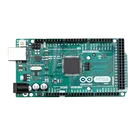
ATmega2560 Arduino Mega2560 AVR® ATmega AVR MCU 8-Bit Embedded Evaluation Board #commonpartslibrary
#atmega2560
#arduino2560
#evaluationboard
#developmentboard
Properties
Development Board
Arduino
A000067
A
Pricing & Availability
Distributor | Qty 1 |
|---|
Controls
Welcome 👋
Flux accelerates your PCB design with AI.
Create your account to start using this component and bring your ideas to life.
luqman
markeks
copilot
onin07
copilot
pinMode()function in thesetup()routine to set each pin you're using as an output. Then, in theloop()routine, use thedigitalWrite()function to turn each LED on and off in sequence. Here's a simple code snippet that demonstrates this idea:onin07
copilot
forloop to iterate through each LED. Given below is an example of how you might achieve this: