创建SOP16芯片原件库

看起来你之所以找不到 HC01-SOP16-1.27,很可能是“还未发布到库”或“权限仍为私有”。这是 Flux 文档对“发布到库与可见性”的原文说明:
“Understanding Permissions Publishing a component to the library doesn't automatically make it publicly accessible to all users. Only people specified in your project's permissions can find and use your component in the library.
This permission-based approach gives you control over who can access your components:
Private components: Set permissions to limit access to just yourself or your team Public components: Set permissions to "Everyone" to make your component available to the entire Flux community
By default, a project's permissions are set to Private, meaning only you can access it. To manage permissions:
Click on the "Share" button in the menu of your project Adjust the permissions as needed Publish the changes for the new permissions to take effect in the library
Remember that a change to your permissions is a change to your project, and must be published again to be reflected in the library.
Component Persistence Once a part is published, it cannot be un-published. This ensures that your component doesn't disappear from projects that utilize it.
However, you can:
Change permissions: Modify who can access your component in the library Archive the component: When you archive#archive-a-project a component, its permissions are changed to Private, hiding it from others in the library
Regardless of these changes, if anyone is already using your published component in a project, it will persist in that project, ensuring design continuity.
When you've created a new component and want to make it available in the library, follow these steps:
Type ⌘P on Mac or Ctrl P on Windows, or Click on the Flux Menu in the upper left corner of the screen Choose "Publish to Library..." Select "Publish"
The publishing process involves these key steps:
Open the component project you want to publish Click on the Flux Menu in the top-left corner of the screen Choose "Publish to library..." Review the component details Click "Publish"
Once published, your component will appear in the library for users who have permission to access it, based on your project's permission settings.
Publishing is the act of sharing your brand new component, or updates to your component, to the Flux library. This process makes your components discoverable and usable by others according to the permissions you set. Publishing is important because new projects in Flux don't show up in the library by default. You have to intentionally choose to share them there. The same is true for making changes to published components. After you've made the changes you want, you must publish again to make those changes visible to others.” Source
请按上面步骤确保:已发布到库,且权限满足你当前账号可见;然后再在库里搜索 HC01-SOP16-1.27 使用。若仍找不到,告诉我当前项目是否已经完成发布和权限设置。
we want an array 4x4 of rp2040 with shared boot flash
我们要构建一块“4×4 个 RP2040 共享启动用 QSPI Flash”的板。
计划:
  1. 放置 16×RP2040,按 4×4 网格;每个 VDD-GND 对就近放置 100nF 去耦(≤5 mm,基于知识库指导);每颗配 12 MHz 低 ESR<100 Ω 晶振;加 SWD 与 RUN/BOOT 管脚。
  2. 共享 QSPI:一颗外部 QSPI Flash,SCLK/IO0–IO3 总线扇出;为每颗 MCU 实施 CSN 隔离/复位门控(多路复用/缓冲),并配置必要上拉与串联电阻。
  3. 电源与接口:设计公共电源与大容量电容;按需布置 USB/UART、测试点与地过孔拼接。
  4. 连接与约束:为 16 颗分配索引与 CSN 控制,建立启动仲裁与编程时序;完成原理图连线。
  5. PCB:4×4 栅格布局;QSPI 走线长度控制与阻抗;去耦紧邻放置;ERC/DRC 通过后发布。
说明:
  • 依据知识库:RP2040 需外接 QSPI Flash 并正确连线;晶振选 12 MHz 且 ESR<100 Ω;每对电源引脚各放 100nF 去耦,距离不超过 5 mm。
  • 若你确认采用“单颗 Flash + 每 MCU 独立受控 CSN(经多路复用/缓冲/门控)”方案,我即可开始执行。需要改为“多颗 Flash(分区)”或“共享外部时钟”也可调整。请告知是否现在开始。
Choose flash sharing scheme
Decoupling and crystal parts
Power rail sizing
Programming/debug topology
Flux workflow question
why usb detection i.e usb monitor is used ?

@copilot i want to interface a smd5050 rgb led with rp2040. can you tell me how to do this ?
2y
Sure, I assume that you're going to use a common-anode SMD5050 RGB LED. To interface an SMD5050 RGB LED with an RP2040, you need 3 GPIOs from the RP2040, since the LED has one common anode and 3 cathodes (one for each color: Red, Green, Blue).
Here is a step-by-step guide:
  1. Select three GPIO pins on the RP2040 that you'd like to use for controlling the LED. Let's use the GPIOs 5 (Pin #7), 6 (Pin #8) and 7 (Pin #9).
  2. Connect these to the R, G, and B cathodes of the LED respectively. Please note that each of these connections should have a current limiting resistor in series to prevent the LED from drawing too much current which might damage it & the microcontroller.
Assuming that the forward voltage drops for the Red, Green, and Blue LEDs are around 2V, 2.2V, and 3.2V respectively and that we want to pass around 20mA through each LED, the resistors can be calculated as
[ R = \frac{V}{I} ]
The supply voltage (V) from a GPIO pin in the RP2040 microcontroller is 3.3V. Therefore,
For the Red LED:
[ R = \frac{3.3V - 2.0V}{20mA} = 65 \Omega ]
For the Green LED:
[ R = \frac{3.3V - 2.2V}{20mA} = 55 \Omega ]
For the Blue LED:
\[ R = \frac{3.3V - 3.2V}{20mA} = 5 \Omega \]
Standard resistor are used, So, For red, use 68 Ω and for green and blue, use 56 Ω & 10 Ω respectively.
  1. Connect the common anode of the RGB LED to a 3.3V power source.
You'd then control each individual color by adjusting the PWM signal sent to its respective GPIO pin. RP2040 has built-in PWM hardware, so you would set this up in your code based on which GPIOs you've chosen to use.
Please review the RP2040 datasheet and the datasheet or specs for your specific LED to ensure that these connections won't exceed the max source/sink current for the GPIOs or the LED. Adjust the resistor values if necessary.
2y
@copilot lot i want to interface a smd5050 led with rp2040. can you tell me how to do this ?
2y
Of course, below is a simple procedure to interface a SMD5050 RGB LED with the RP2040 Microcontroller:
  1. Power source: The RP2040 operates at 3.3V, while the typical forward voltage for an SMD5050 LED ranges from 3.0V to 3.3V (per channel). Thus, you can directly power the LED from one of the 3.3V pins (IOVDD) of the RP2040. Note that, if you want to drive multiple SMD5050 LEDs, you might need an external power source depending on the power requirements.
  2. Resistors: Insert a current limiting resistor (220-470 Ohm) in series with each of the Red, Green and Blue terminals of the SMD5050 RGB LED. The resistor value can vary based on brightness requirements. The purpose of these resistors is to limit the current flowing through each LED segment and prevent it from reaching an intensity that could damage the device.
  3. GPIO Pins: Connect the other end of each resistor to a separate GPIO pin on the RP2040. For instance, you may use GPIO29, GPIO27, and GPIO25. These will be used to control the brightness of each color of the LED.
  4. Ground: The Common Anode or Cathode (depending if you have a common anode or a common cathode RGB LED) of the LED should be attached to one of the Ground (GND) pins on the RP2040.
  5. Programming: Write a program to control the GPIO pins connected to the LED. By varying the voltage level on these pins, you can change the LED's color.
Remember that all physical connections should be reflected in your Flux project by drawing wires between the appropriate pins and component terminals.
Here is what your final connection scheme might look like:
  • IOVDD (3.3V output, RPi) - Power Supply for LED
  • GND (RPi) - Common Anode or Cathode of LED
  • GPIO29 (RPi) - 220-470 Ohm resistor - Red terminal of LED
  • GPIO27 (RPi) - 220-470 Ohm resistor - Green terminal of LED
  • GPIO25 (RPi) - 220-470 Ohm resistor - Blue terminal of LED
To control the color and brightness of the LED, you will have to adjust the duty cycle of the PWM signals sent to the GPIO pins connected to the LED.
Please keep in mind that the pin numbers or GPIOs selected, and the values of resistors, are assumptions made to advance the conversation. You might need to adjust these to suit your needs.
2y
@copilot i want to interface a smd5050 led with rp2040. can you tell me how to do this ?
2y
Something went wrong, sorry. Please try again.
2y
@copilot why usb detection i.e usb monitor is used ?
2y
USB VBUS DET why it is used in rp2040
2y
USB detection or monitoring is used for several reasons:
  1. Device Detection: It helps to detect when a USB device is plugged in or removed from the system. Upon detection, necessary actions can be taken such as loading device drivers or launching certain applications.
  2. Data Monitoring: USB monitoring can allow us to analyze the data being transferred over USB in real time. This can be helpful in debugging or developing USB devices or software.
  3. Security: USB monitoring can also be part of a security system. Unauthorized use of USB ports can represent a security risk (for example, data theft or malware installation). By monitoring USB usage, such threats can be mitigated.
  4. Device Management: Businesses and organizations often use USB monitoring as part of asset management strategies. They can keep track of what devices are being used, where they're being used, and how they're being used.
Remember that every implementation of a USB monitor can be designed with specific features, based on the use case. Some are simple and provide basic functionality, while others are more complex and can provide detailed technical data about the USB protocol itself.
2y
USB detection - or monitoring the USB VBUS - serves several important functions in a microcontroller like the RP2040:
  • Device Activation: By monitoring the USB VBUS line, the RP2040 can detect when it has been plugged into a host device (like a computer). This is because the host provides power over the VBUS. When this power is detected, the RP2040 can begin its initialization sequences and start communication, setting itself into the correct USB state (for example, Default, Address, or Configured state).
  • Safety: Monitoring the VBUS allows the RP2040 to detect overvoltage or electrostatic discharge events, protecting the device from potential damage.
  • Power Management: The USB standard allows for power negotiation over the VBUS line. Devices can request more power from the host, and the host can then grant or deny these requests. By monitoring the VBUS, the RP2040 can accurately manage its power usage.
  • USB Suspend Mode: When no activity is detected on the USB lines for a certain period, the host may put the bus in Suspend mode, dropping the power supply to minimal. The device can detect this by monitoring the VBUS and set itself to a low-power state.
Please note, the RP2040 does not have an on-chip method to detect USB VBUS, it should be handled by an external component if VBUS detection is needed in your project.
2y
Someone is typing...
3
MCSJK-7U-12.00-10-10-80-B-10 this is a crystal of 12 Mhz calculate load capacito...

@copilot can you give me info usb section of rp2040
2y
Certainly! The USB section of the RP2040 microcontroller is primarily made up of two physical pins, along with some internal features.
Here's an overview:
USB_D- (Pin: USB_DM)
This pin is responsible for the data minus (D-) part of the USB communication.
USB_D+ (Pin: USB_DP)
USB_DP enabled the Data plus (D+) part of the USB communication.
It's important to note that RP2040 support full-speed and low-speed USB devices and it's categorised as a USB 2.0 device.
Internally, the RP2040 microcontroller includes an on-chip USB PHY, which takes care of the low-level communication protocols. It also has a flexible bus that allows the chip to act as either the host or device on the bus.
This setup means you can use the RP2040 in a broad range of USB applications from simple HID devices to more complex ones like CDC (Communication device class) and MSC (Mass storage class) devices.
If you're planning to use the RP2040's USB capabilities in your project, don't forget to connect the USB_DP and USB_DM to the D+ and D- pins of your USB connector, respectively. Also, ensure that the VBUS coming from the USB connector matches the IOVDD of the microcontroller, typically 3.3V.
It may be beneficial to also include ESD protection and a USB transceiver if your circuit will be exposed to potential electrostatic discharge or if you want to improve the integrity of your USB signals, although the latter may not be necessary as the RP2040 has an internal PHY.
2y
we have glitch in rp2040 usb line
2y
It's unfortunate to hear your USB line on the RP2040 is having glitches. Here are some troubleshooting steps you could consider:
  1. Ensure correct power supply voltage: Make sure the power supply voltage matches the required IOVDD of the RP2040, which is typically 3.3V. A mismatch in supply voltage can cause errors in data transmission.
  2. Check the physical connections: A poor solder joint, or a loose or broken connection at the USB connector could cause inconsistent behavior.
  3. Add USB termination resistors: If not already in your circuit, you might want to add USB termination resistors (typically 22 ohms) between the USB_DP, USB_DM lines and the respective D+, D- USB connector pins.
  4. Check for ESD and EMI: Electrostatic Discharge (ESD) or Electromagnetic Interference (EMI) can cause spurious signals on the USB lines. Using ESD protection components like Transient Voltage Suppression (TVS) diodes can help in reducing ESD related problems.
  5. Check for firmware issues: In some cases, the issue might not be hardware-related at all, but instead a firmware problem. Make sure the USB drivers on the RP2040 are up-to-date and that your code is properly handling USB communication.
  6. Use a USB Protocol Analyzer: For more intricate USB issues, a USB protocol analyzer might be needed. This device will show you the details of the data being transferred on the USB lines and can shed light on any communication errors.
Remember: When making hardware adjustments always double check pin assignments and voltages to prevent further damage.
I hope this helps you in resolving the RP2040 USB line glitch.
2y
@copilot MCSJK-7U-12.00-10-10-80-B-10 this is a crystal of 12 Mhz calculate load capacitors
2y
MCSJK-7U-12.00-10-10-80-B-10
2y
The load capacitor value for an external crystal oscillator can be calculated using the following formula:
CLactual=2×CLspecCstray{C_L}_{actual} = 2 \times {C_L}_{spec} - C_{stray}
where:
  • CLactual{C_L}_{actual} is the actual load capacitor value you should place in your circuit
  • CLspec{C_L}_{spec} is the specified capacitor value from the crystal's datasheet
  • CstrayC_{stray} is the stray capacitance, any extra capacitance existing in your circuit.
However, we don't have the specific datasheet details for the crystal you've mentioned (MCSJK-7U-12.00-10-10-80-B-10). Assuming typical values, most manufacturers suggest a load capacitance ${C_L}_{spec}$ around 20pF, and stray capacitance CstrayC_{stray} might be around 5pF.
Assuming these values, we substitute into the formula:
CLactual=2×20pF5pF=35pF{C_L}_{actual} = 2 \times 20 pF - 5 pF = 35 pF
So you would use two 35pF capacitors on the oscillator circuit. But, please check the datasheet for the exact load capacitance and adapt the calculation accordingly.
2y
The load capacitor value for an external crystal oscillator can be calculated using the following formula:
CLactual=2×CLspecCstray{C_L}_{actual} = 2 \times {C_L}_{spec} - C_{stray}
where:
  • CLactual{C_L}_{actual} is the actual load capacitor value you should place in your circuit
  • CLspec{C_L}_{spec} is the specified capacitor value from the crystal's datasheet
  • CstrayC_{stray} is the stray capacitance, any extra capacitance existing in your circuit.
However, we don't have the specific datasheet details for the crystal you've mentioned (MCSJK-7U-12.00-10-10-80-B-10). Assuming typical values, most manufacturers suggest a load capacitance ${C_L}_{spec}$ around 20pF, and stray capacitance CstrayC_{stray} might be around 5pF.
Assuming these values, we substitute into the formula:
CLactual=2×20pF5pF=35pF{C_L}_{actual} = 2 \times 20 pF - 5 pF = 35 pF
So you would use two 35pF capacitors on the oscillator circuit. But, please check the datasheet for the exact load capacitance and adapt the calculation accordingly.
2y
MCSJK-7U-12.00-10-10-80-B-10 this is a crystal of 12 Mhz calculate load capacitors
2y
Someone is typing...
2
VREG_VIN
VREG_VOUT
GPIO19
RUN
GPIO3
GPIO4
QSPI_SD1
QSPI_CSN
IOVDD
SWD
USB_VDD
GPIO17
QSPI_SD3
IOVDD
GPIO18
DVDD
ADC_AVDD
QSPI_SD0
QSPI_SCLK
SWCLK
USB_DP
GPIO2
XOUT
GPIO16
GPIO15
XIN
USB_DM
GPIO1
QSPI_SD2
GPIO0
IOVDD


No results...

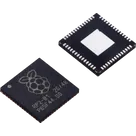
RP2040

RP2040 thumbnail
ARM® Cortex®-M0+ - Microcontroller IC 32-Bit Dual-Core 133MHz External Program Memory 56-QFN (7x7) Alternative MPN #SC0914(7) #SC0914(13) #RaspberryPi #Raspberry #Pi #RPi #Pico

Properties

Microcontroller

Raspberry Pi

RP2040

U

Parametric

Pricing & Availability

Distributor

Qty 1

Controls