PCB Prototype Design Inquiry
Thought for 1 min 35 sec
요청하신 현재 PCB 점검 결과를 요약했습니다.
요약
-
Design Rule Checks: 1개 리뷰, 오류 41건
- Manufacturer Part Number: 커넥터/소켓 등 41개 부품에 MPN 미지정 오류.
- 영향: 제조·조달 단계에서 실제 부품 선정이 필요합니다.
- 해결: 각 커넥터에 실제 MPN을 지정하거나, 지금은 자리표시자라면 나중에 지정할 계획으로 유지해도 됩니다.
- Manufacturer Part Number: 커넥터/소켓 등 41개 부품에 MPN 미지정 오류.
-
Electrical Rule Checks: 1개 리뷰, 오류 2건
- Missing Power: IC1 (TPS61088) 전원 관련 핀에 전원이 공급되지 않음으로 표시 2건.
- 원인/의도: 현재 부스트 IC를 “무연결 placeholder”로 두었기 때문에 정상적인 경고입니다.
- 해결: 실제 사용 시 VIN/VCC/GND 및 필수 수동부품(인덕터, 입출력 캐패시터 등)을 연결하면 해소됩니다. 지금 상태를 유지하려면 해당 핀(또는 컴포넌트)에 ERC 예외를 부여해 경고를 숨길 수 있습니다.
- Missing Power: IC1 (TPS61088) 전원 관련 핀에 전원이 공급되지 않음으로 표시 2건.
메모
- Flux는 DRC/ERC가 실시간으로 동작합니다. 자리표시자(placeholder) 위주의 설계에서는 전원 미연결, MPN 미지정 경고가 흔히 발생합니다. 의도된 상태라면 문제는 아니며, 생산 준비 단계에서 정리하면 됩니다.
원하시면
- 커넥터류에 실제 MPN을 일괄 지정
- IC1의 특정 핀에 ERC 예외 적용 둘 중 원하는 작업을 알려주세요. 제가 바로 적용해 드릴 수 있습니다.

pin socket의 경우 어떻게 MPN을 지정하나요?
Thought for 1 min 11 sec
Flux 문서에 따르면 다음과 같습니다:
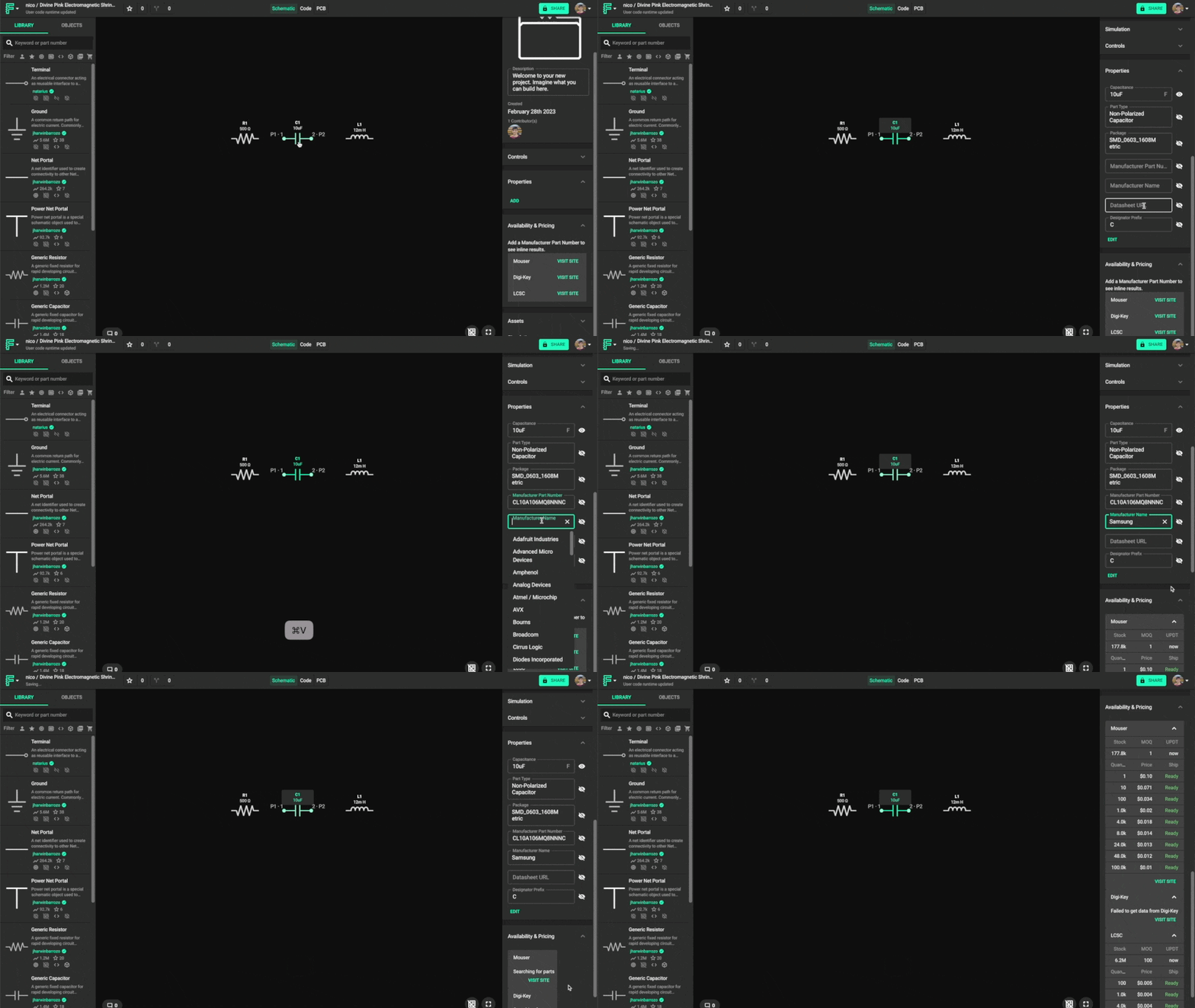
"Changing the Manufacturer Part Number
The last step in fully defining a generic component is adding a manufacturer part number. To change the manufacturer part number:
- Click on the component you want to modify to select it.
- Locate the Properties panel in the component's inspector on the right side.
- Find and edit the Manufacturer Part Number property.
- Optionally, modify the Manufacturer Name property.
- Right below the Properties panel you'll see the Pricing & Availability panel, which contains up-to-date info for the MPN you just added."
Image
예시 MPN 요청
현재 부품에 MPN 입력
BOM 반영 확인
풋프린트 조건 전달
제조사 고정


