Adding Temperature and Humidity Sensor

276 days
i want to add a temp and humidity sensor
Thought for 40 sec
276 days
Based on Flux knowledge base guidance, when selecting a temperature and humidity sensor you should first clarify your application requirements.
Could you tell me:
- The desired interface (e.g., digital I²C/SPI or analog output)?
- Operating range and accuracy requirements (e.g., –10 °C to 50 °C, ±0.1 °C)?
- Any budget or footprint constraints?
With that info I can recommend specific parts and add them to your schematic.
Digital I²C, tight spec
Analog output sensor
SPI sensor, higher budget
Compact I2C module
how do I use Flux?

@copilot how do I use Flux?
2y
Using Flux, the browser-based electronics CAD program, is quite intuitive and user-friendly, whether you're designing electrical schematics or laying out PCBs. Here's a brief guide to help you get started:
-
Accessing Flux: Simply visit the Flux website and sign in or create an account to begin.
-
Creating a New Project: Once logged in, you can start a new project by selecting the option to create a new design. This will open the schematic editor where you can begin drafting your circuit.
-
Placing Components:
- In schematic mode, you can drag components from the library onto the canvas. Use the search function in the component library to find the specific parts you need.
- Place the components on the canvas where you'd like them to be. You can always move them later if needed.
-
Making Connections:
- To connect components, draw wires between the pins of components. This represents electrical connections in your schematic.
-
Switching to PCB Layout:
- Once your schematic is complete, you can switch to the PCB layout view. Here, Flux will auto-generate a board with all your components ready to be placed and routed.
- Arrange your components on the board and route them by drawing traces between the appropriate pins, ensuring there are no shorts or mismatches.
-
Simulation and Validation:
- Flux might offer capabilities to simulate your circuit to check for basic errors or functionality before moving on to fabrication.
-
Exporting Your Design:
- After finalizing both schematic and PCB design, you can export your work in various formats, suitable for manufacturing or further analysis.
For detailed instructions, Flux provides multiple resources[1]:
- Tutorials: Comprehensive guides on how to use Flux effectively for different project needs.
- Reference: For detailed information about elements and functionalities within Flux.
- YouTube: A library of video examples, tutorials, and projects created in Flux.
- Slack Community: Join the community to ask questions directly to the Flux team and engage with other users.
Always remember, the Flux documentation and community are great resources if you encounter any challenges or need more detailed assistance[2].
2y
Someone is typing...
4
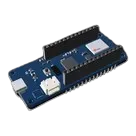
This is a template to design your own Arduino MKR Wifi 1010 shield!

y una resistencia
2y
necesito conectar un sensor
2y

Puedes conectar un sensor pir
2y

These are some fully-designed projects based on this template that you might find interesting:
3y
This is a template to design your own Arduino MKR Wifi 1010 shield!
3y
Someone is typing...
1
create a high level mermaid block diagram of this project. Include key component...

@copilot create a high level mermaid block diagram of this project. Include key component's manufacturer part number in each block whenever possible.
2y
Given the request, I'll create a simplified high-level block diagram using Mermaid syntax that outlines the Arduino MKR WiFi 1010 project, focusing on the main component (Arduino MKR WiFi 1010 itself) and referencing its MPN (Manufacturer Part Number) within the block.
Diagram
- Arduino MKR WiFi 1010 (ABX00023): This is the core block that signifies the Arduino MKR WiFi 1010 board with its MPN: ABX00023.
- Digital I/O: Represents the digital input/output pins available on the MKR WiFi 1010, including the specific function pins for SPI, I2C, and UART. For brevity, the diagram denotes these connections simply, with specifics to be determined based on application needs.
- Analog Input Pins: Indicates the analog pins, useful for analog input signals.
- SPI (MOSI/MISO/SCK), I2C (SDA/SCL), and UART (RX/TX): These blocks indicate the specific pins used for SPI, I2C, and UART communication respectively.
- Power (VIN, 3V3, 5V, GND): This block shows the power supply pins, crucial for powering the board and any peripherals.
This diagram provides a foundational overview of the Arduino MKR WiFi 1010 setup, ideal as a starting point for incorporating additional components or interfaces in your project within Flux.ai's schematic editor.
2y
Someone is typing...
7
explain this project.

@copilot explain this project.
2y
This project appears to be a template for an Arduino MKR WiFi 1010 board, which is a powerful board that combines the functionality of the Zero and Wi-Fi capabilities through the NINA-W10 module. This allows for wireless network connections in designs. The template includes the Arduino MKR WiFi 1010 as a central component, designated as U1, and outlines its pins along with their functions. Here's a breakdown of what the project includes based on the provided text:
- Template Name: Arduino MKR WiFi 1010 Template
- Purpose: This template provides a starting point for projects utilizing the Arduino MKR WiFi 1010, facilitating the use of Wi-Fi in projects.
- MPN of U1: ABX00023
- Features of U1 (Arduino MKR WiFi 1010):
- Pins and Their Functions:
- AREF: Analog reference pin for ADC
- DAC0/A0 - A5: Analog pins that can be used for analog input $A0-A5$ and one for digital-to-analog converter output $DAC0$
- A6: Additional analog input pin not typically available on many Arduino boards
- 0 - 7, 13_RX, 14_TX: Digital pins $with pin 0$ used as RX and pin 1 as TX for serial communication
- 8_MOSI, 9_SCK, 10_MISO: SPI communication pins
- 11_SDA, 12_SCL: I2C communication pins
- RESET: Reset pin to restart the microcontroller
- GND: Ground pin
- 3V3: 3.3V power output
- VIN: Input voltage to the board
- 5V: 5V power output
- Pins and Their Functions:
- Designator Prefix: U, indicating this is an integrated circuit or module in this context.
- Manufacturer: Arduino
- Project Tagging: The project is tagged with #template, #project-template, #arduino, #MKR to make it easily searchable and identifiable for its intended use and compatibility.
- License: The project is licensed under the Creative Commons Attribution 4.0 International License (https://creativecommons.org/licenses/by/4.0/), allowing others to share and adapt the work, provided attribution is given.
As stated, no electrical connections have been made in this project yet. It’s a foundational setup intended to support the development of projects that require Wi-Fi connectivity by leveraging the NINA-W10 module integrated into the Arduino MKR WiFi 1010.
2y
Someone is typing...
5
create a high level mermaid block diagram of this project. Include key component...
@copilot create a high level mermaid block diagram of this project. Include key component's manufacturer part number in each block whenever possible.
2y
To create a high-level block diagram using Mermaid syntax for the Arduino MKR WiFi 1010 project, we will focus on the main component outlined in your project description: the NINA-W10 transceiver module integrated within the Arduino MKR WiFi 1010 (MPN: ABX00023). Since no specific external components or connections are detailed beyond the Arduino MKR WiFi 1010 itself, the block diagram will be centered around this microcontroller board and its key functionalities.
Diagram
This Mermaid diagram outlines the basic structure of the Arduino MKR WiFi 1010 project focusing on:
- NINA-W10 Wi-Fi Module: Represents the wireless communication capabilities provided by the onboard NINA-W10 transceiver, enabling 802.11 b/g/n networking.
- Digital Pins 0-14: Shows the digital input/output functionality available through the microcontroller.
- Analog Pins A0-A6: Illustrates the analog input capabilities.
- SPI, I2C, Serial: Depicts the various communication protocols the MKR WiFi 1010 supports, highlighting specific pins used for these protocols.
- Power Options: Breaks down the power supply options into VIN, 3.3V, 5V, and GND to showcase how the board can be powered and how it interfaces with external components through these power pins.
This high-level block diagram provides an overview of the Arduino MKR WiFi 1010's functionality and interface options, based on the specific mention of the MPN (ABX00023) and its capabilities.
2y
Someone is typing...
6
U1
8
New Comment
Someone is typing...
8
Necesito que me hagas un circuito que muestre GRUPO-2 con un display de 7 segmen...

Necesito que me hagas un circuito que muestre GRUPO-2 con un display de 7 segmentos, algo asi como lo es en tinkerkat
1y
Someone is typing...
Reviews
 A generic fixed inductor suitable for rapid circuit topology development. The footprint automatically adapts based on the selected package, supporting standard SMD sizes (e.g., 0402, 0603, 0805) as well as well-known inductor packages such as SDR1806, PA4320, SRN6028, and SRR1260. Standard inductor values: 1.0 nH, 10 nH, 100 nH, 1.0 µH, 10 µH, 100 µH, 1.0 mH 1.2 nH, 12 nH, 120 nH, 1.2 µH, 12 µH, 120 µH, 1.2 mH 1.5 nH, 15 nH, 150 nH, 1.5 µH, 15 µH, 150 µH, 1.5 mH 1.8 nH, 18 nH, 180 nH, 1.8 µH, 18 µH, 180 µH, 1.8 mH 2.2 nH, 22 nH, 220 nH, 2.2 µH, 22 µH, 220 µH, 2.2 mH 2.7 nH, 27 nH, 270 nH, 2.7 µH, 27 µH, 270 µH, 2.7 mH 3.3 nH, 33 nH, 330 nH, 3.3 µH, 33 µH, 330 µH, 3.3 mH 3.9 nH, 39 nH, 390 nH, 3.9 µH, 39 µH, 390 µH, 3.9 mH 4.7 nH, 47 nH, 470 nH, 4.7 µH, 47 µH, 470 µH, 4.7 mH 5.6 nH, 56 nH, 560 nH, 5.6 µH, 56 µH, 560 µH, 5.6 mH 6.8 nH, 68 nH, 680 nH, 6.8 µH, 68 µH, 680 µH, 6.8 mH 8.2 nH, 82 nH, 820 nH, 8.2 µH, 82 µH, 820 µH, 8.2 mH #generics #CommonPartsLibraryjharwinbarrozo16.2k
- A generic fixed capacitor ideal for rapid circuit topology development. You can choose between polarized and non-polarized types, its symbol and the footprint will automatically adapt based on your selection. Supported options include standard SMD sizes for ceramic capacitors (e.g., 0402, 0603, 0805), SMD sizes for aluminum electrolytic capacitors, and through-hole footprints for polarized capacitors. Save precious design time by seamlessly add more information to this part (value, footprint, etc.) as it becomes available. Standard capacitor values: 1.0pF, 10pF, 100pF, 1000pF, 0.01uF, 0.1uF, 1.0uF, 10uF, 100uF, 1000uF, 10000uF 1.1pF, 11pF, 110pF, 1100pF 1.2pF, 12pF, 120pF, 1200pF 1.3pF, 13pF, 130pF, 1300pF 1.5pF, 15pF, 150pF, 1500pF, 0.015uF, 0.15uF, 1.5uF, 15uF, 150uF, 1500uF 1.6pF, 16pF, 160pF, 1600pF 1.8pF, 18pF, 180pF, 1800pF 2.0pF, 20pF, 200pF, 2000pF 2.2pF, 22pF, 220pF, 2200pF, 0.022uF, 0.22uF, 2.2uF, 22uF, 220uF, 2200uF 2.4pF, 24pF, 240pF, 2400pF 2.7pF, 27pF, 270pF, 2700pF 3.0pF, 30pF, 300pF, 3000pF 3.3pF, 33pF, 330pF, 3300pF, 0.033uF, 0.33uF, 3.3uF, 33uF, 330uF, 3300uF 3.6pF, 36pF, 360pF, 3600pF 3.9pF, 39pF, 390pF, 3900pF 4.3pF, 43pF, 430pF, 4300pF 4.7pF, 47pF, 470pF, 4700pF, 0.047uF, 0.47uF, 4.7uF, 47uF, 470uF, 4700uF 5.1pF, 51pF, 510pF, 5100pF 5.6pF, 56pF, 560pF, 5600pF 6.2pF, 62pF, 620pF, 6200pF 6.8pF, 68pF, 680pF, 6800pF, 0.068uF, 0.68uF, 6.8uF, 68uF, 680uF, 6800uF 7.5pF, 75pF, 750pF, 7500pF 8.2pF, 82pF, 820pF, 8200pF 9.1pF, 91pF, 910pF, 9100pF #generics #CommonPartsLibraryjharwinbarrozo1.5M
- A generic fixed resistor ideal for rapid circuit topology development. Its footprint automatically adapts based on the selected package case code—supporting 0402, 0603, 0805, 1203, and many other standard SMD packages, as well as axial horizontal and vertical configurations. Save precious design time by seamlessly add more information to this part (value, footprint, etc.) as it becomes available. Standard resistor values: 1.0 ohm, 10 ohm, 100 ohm, 1.0k ohm, 10k ohm, 100k ohm, 1.0M ohm 1.1 ohm, 11 ohm, 110 ohm, 1.1k ohm, 11k ohm, 110k ohm, 1.1M ohm 1.2 ohm, 12 ohm, 120 ohm, 1.2k ohm, 12k ohm, 120k ohm, 1.2M ohm 1.3 ohm, 13 ohm, 130 ohm, 1.3k ohm, 13k ohm, 130k ohm, 1.3M ohm 1.5 ohm, 15 ohm, 150 ohm, 1.5k ohm, 15k ohm, 150k ohm, 1.5M ohm 1.6 ohm, 16 ohm, 160 ohm, 1.6k ohm, 16k ohm, 160k ohm, 1.6M ohm 1.8 ohm, 18 ohm, 180 ohm, 1.8K ohm, 18k ohm, 180k ohm, 1.8M ohm 2.0 ohm, 20 ohm, 200 ohm, 2.0k ohm, 20k ohm, 200k ohm, 2.0M ohm 2.2 ohm, 22 ohm, 220 ohm, 2.2k ohm, 22k ohm, 220k ohm, 2.2M ohm 2.4 ohm, 24 ohm, 240 ohm, 2.4k ohm, 24k ohm, 240k ohm, 2.4M ohm 2.7 ohm, 27 ohm, 270 ohm, 2.7k ohm, 27k ohm, 270k ohm, 2.7M ohm 3.0 ohm, 30 ohm, 300 ohm, 3.0K ohm, 30K ohm, 300K ohm, 3.0M ohm 3.3 ohm, 33 ohm, 330 ohm, 3.3k ohm, 33k ohm, 330k ohm, 3.3M ohm 3.6 ohm, 36 ohm, 360 ohm, 3.6k ohm, 36k ohm, 360k ohm, 3.6M ohm 3.9 ohm, 39 ohm, 390 ohm, 3.9k ohm, 39k ohm, 390k ohm, 3.9M ohm 4.3 ohm, 43 ohm, 430 ohm, 4.3k ohm, 43K ohm, 430K ohm, 4.3M ohm 4.7 ohm, 47 ohm, 470 ohm, 4.7k ohm, 47k ohm, 470k ohm, 4.7M ohm 5.1 ohm, 51 ohm, 510 ohm, 5.1k ohm, 51k ohm, 510k ohm, 5.1M ohm 5.6 ohm, 56 ohm, 560 ohm, 5.6k ohm, 56k ohm, 560k ohm, 5.6M ohm 6.2 ohm, 62 ohm, 620 ohm, 6.2k ohm, 62K ohm, 620K ohm, 6.2M ohm 6.8 ohm, 68 ohm, 680 ohm, 6.8k ohm, 68k ohm, 680k ohm, 6.8M ohm 7.5 ohm, 75 ohm, 750 ohm, 7.5k ohm, 75k ohm, 750k ohm, 7.5M ohm 8.2 ohm, 82 ohm, 820 ohm, 8.2k ohm, 82k ohm, 820k ohm, 8.2M ohm 9.1 ohm, 91 ohm, 910 ohm, 9.1k ohm, 91k ohm, 910k ohm, 9.1M ohm #generics #CommonPartsLibraryjharwinbarrozo1.5M
- An electrical connector acting as reusable interface to a conductor and creating a point where external circuits can be connected.Terminal
- Wirelessly connects nets on schematic. Used to organize schematics and separate functional blocks. To wirelessly connect net portals, give them same designator. #portaljharwinbarrozo43.0M
- General Purpose Thick Film Standard Power and High-Power Chip Resistor 47 kOhms ±5% 0.125W, 1/8W Chip Resistor 0805 (2012 Metric) Automotive AEC-Q200 Thick Film Features: - RMCF – standard power ratings - RMCP – high power ratings - Nickel barrier terminations standard - Power derating from 100% at 70ºC to zero at +155ºC - RoHS compliant, REACH compliant, and halogen free - AEC-Q200 compliantjharwinbarrozo1.2M
- 10 µF 16 V Aluminum - Polymer Capacitors Radial, Can - SMD 30mOhm 2000 Hrs @ 105°C #commonpartslibrary #capacitor #aluminumpolymer #radialcanjharwinbarrozo1.2M
- Battery Holder (Open) Coin, 20.0mm 1 Cell SMD (SMT) Tab bate or batt #forLedBlinkjharwinbarrozo700.5k


Arduino MKR Wifi 1010 Template
Properties
Pricing & Availability
Distributor | Qty 1 |
|---|---|
Digi-Key | $38.60 |
Mouser | $38.60 |
Controls
Welcome 👋
Flux helps you build PCBs faster with an AI teammate!
Create your account to collaborate, stay updated, fork your own version, and get instant answers from our AI agent.
freds4hb
freds4hb
copilot