Adding HC-SR04 Component Issues
0:27
Chat History
Project
Below are the steps you can follow in Flux to create a custom part if the HC-SR04 is not available in the library:
-
Gather the Datasheet Information
• Locate the HC-SR04 datasheet (pin configuration, dimensions, electrical characteristics).
• Identify the key pins (typically VCC, Trig, Echo, and GND). -
Create a Custom Schematic Symbol
• In Flux, open the custom part or schematic symbol editor.
• Draw the symbol to represent the HC-SR04.
• Place pins for VCC, Trig, Echo, and GND and label them accordingly.
• Optionally, add necessary annotations or datasheet references. -
Design a Custom Footprint
• Open the PCB footprint editor in Flux.
• Use the dimensions from the datasheet to lay out the pads corresponding to the HC-SR04 sensor.
• Set the pad sizes, spacing, and any silkscreen markings as needed. -
Link the Symbol and Footprint
• Once both symbol and footprint are created, link them together to form the complete custom part.
• Double-check that the pin names and numbers match between the schematic symbol and the footprint. -
Save and Add to Your Project
• Save the newly created part in your personal library within Flux.
• Add the custom HC-SR04 part to your schematic, and verify that it appears with the correct symbol and footprint. -
Test the Part in Your Design
• Place and wire the HC-SR04 in your schematic.
• Verify (using the design rules in Flux) that the custom part integrates correctly into your project.
For more detailed instructions, you can search the Flux documentation using keywords like "custom part" or "create custom component" via the @help tool.
Search for HC-SR04 in library
Add HC-SR04 if available
List required HC-SR04 specifications
372 days
Ready.
PC8
+3V3
PC1
PB9
PC13
PA10
PC11
NC_10_CN10
PC15
PB4
VDD
PH0
PB0
PB10
PC5
PB14
NC_36
PB7
NC_26
+5V
PC14
PA15
PA9
RESET
PB6
PD2
PA13
PC7
PA11
VBAT
PA7
CN11_2
NC_18
E5V
PA4
PC10
GND_20_CN10
PB12
U5V
PB8
PA2
PC4
NC_11
PA5
PC0
GND_22
PC9
NC_9
AGND
PC2
CN11_1
PA12
PB13
PC12
PA0
CN12_2
PC6
CN12_1
NC_10_CN7
PH1
PB5
GND_20_CN7
PB2
GND_8
PB3
PB1
PA6
NC_38
PA3
PB15
PC3
BOOT0
AVDD
GND_19
PA1
PA8
GND_9
PA14
VIN
IOREF
Reviews

- Wirelessly connects nets on schematic. Used to organize schematics and separate functional blocks. To wirelessly connect net portals, give them same designator. #portaljharwinbarrozo43.0M
- Wirelessly connects power nets on schematic. Identical to the net portal, but with a power symbol. Used to organize schematics and separate functional blocks. To wirelessly connect power net portals, give them the same designator. #portal #powerjharwinbarrozo11.4M
- A generic fixed resistor for rapid developing circuit topology. Save precious design time by seamlessly add more information to this part (value, footprint, etc.) as it becomes available. Standard resistor values: 1.0Ω 10Ω 100Ω 1.0kΩ 10kΩ 100kΩ 1.0MΩ 1.1Ω 11Ω 110Ω 1.1kΩ 11kΩ 110kΩ 1.1MΩ 1.2Ω 12Ω 120Ω 1.2kΩ 12kΩ 120kΩ 1.2MΩ 1.3Ω 13Ω 130Ω 1.3kΩ 13kΩ 130kΩ 1.3MΩ 1.5Ω 15Ω 150Ω 1.5kΩ 15kΩ 150kΩ 1.5MΩ 1.6Ω 16Ω 160Ω 1.6kΩ 16kΩ 160kΩ 1.6MΩ 1.8Ω 18Ω 180Ω 1.8KΩ 18kΩ 180kΩ 1.8MΩ 2.0Ω 20Ω 200Ω 2.0kΩ 20kΩ 200kΩ 2.0MΩ 2.2Ω 22Ω 220Ω 2.2kΩ 22kΩ 220kΩ 2.2MΩ 2.4Ω 24Ω 240Ω 2.4kΩ 24kΩ 240kΩ 2.4MΩ 2.7Ω 27Ω 270Ω 2.7kΩ 27kΩ 270kΩ 2.7MΩ 3.0Ω 30Ω 300Ω 3.0KΩ 30KΩ 300KΩ 3.0MΩ 3.3Ω 33Ω 330Ω 3.3kΩ 33kΩ 330kΩ 3.3MΩ 3.6Ω 36Ω 360Ω 3.6kΩ 36kΩ 360kΩ 3.6MΩ 3.9Ω 39Ω 390Ω 3.9kΩ 39kΩ 390kΩ 3.9MΩ 4.3Ω 43Ω 430Ω 4.3kΩ 43KΩ 430KΩ 4.3MΩ 4.7Ω 47Ω 470Ω 4.7kΩ 47kΩ 470kΩ 4.7MΩ 5.1Ω 51Ω 510Ω 5.1kΩ 51kΩ 510kΩ 5.1MΩ 5.6Ω 56Ω 560Ω 5.6kΩ 56kΩ 560kΩ 5.6MΩ 6.2Ω 62Ω 620Ω 6.2kΩ 62KΩ 620KΩ 6.2MΩ 6.8Ω 68Ω 680Ω 6.8kΩ 68kΩ 680kΩ 6.8MΩ 7.5Ω 75Ω 750Ω 7.5kΩ 75kΩ 750kΩ 7.5MΩ 8.2Ω 82Ω 820Ω 8.2kΩ 82kΩ 820kΩ 8.2MΩ 9.1Ω 91Ω 910Ω 9.1kΩ 91kΩ 910kΩ 9.1MΩ #generics #CommonPartsLibraryjharwinbarrozo1.5M
- A generic fixed capacitor ideal for rapid circuit topology development. You can choose between polarized and non-polarized types, its symbol and the footprint will automatically adapt based on your selection. Supported options include standard SMD sizes for ceramic capacitors (e.g., 0402, 0603, 0805), SMD sizes for aluminum electrolytic capacitors, and through-hole footprints for polarized capacitors. Save precious design time by seamlessly add more information to this part (value, footprint, etc.) as it becomes available. Standard capacitor values: 1.0pF 10pF 100pF 1000pF 0.01uF 0.1uF 1.0uF 10uF 100uF 1000uF 10,000uF 1.1pF 11pF 110pF 1100pF 1.2pF 12pF 120pF 1200pF 1.3pF 13pF 130pF 1300pF 1.5pF 15pF 150pF 1500pF 0.015uF 0.15uF 1.5uF 15uF 150uF 1500uF 1.6pF 16pF 160pF 1600pF 1.8pF 18pF 180pF 1800pF 2.0pF 20pF 200pF 2000pF 2.2pF 22pF 20pF 2200pF 0.022uF 0.22uF 2.2uF 22uF 220uF 2200uF 2.4pF 24pF 240pF 2400pF 2.7pF 27pF 270pF 2700pF 3.0pF 30pF 300pF 3000pF 3.3pF 33pF 330pF 3300pF 0.033uF 0.33uF 3.3uF 33uF 330uF 3300uF 3.6pF 36pF 360pF 3600pF 3.9pF 39pF 390pF 3900pF 4.3pF 43pF 430pF 4300pF 4.7pF 47pF 470pF 4700pF 0.047uF 0.47uF 4.7uF 47uF 470uF 4700uF 5.1pF 51pF 510pF 5100pF 5.6pF 56pF 560pF 5600pF 6.2pF 62pF 620pF 6200pF 6.8pF 68pF 680pF 6800pF 0.068uF 0.68uF 6.8uF 68uF 680uF 6800uF 7.5pF 75pF 750pF 7500pF 8.2pF 82pF 820pF 8200pF 9.1pF 91pF 910pF 9100pF #generics #CommonPartsLibraryjharwinbarrozo1.5M
- A generic fixed inductor for rapid developing circuit topology. *You can now change the footprint and 3D model at the top level anytime you want. This is the power of #genericsjharwinbarrozo15.5k
- An electrical connector acting as reusable interface to a conductor and creating a point where external circuits can be connected.Terminal
- 47 kOhms ±5% 0.125W, 1/8W Chip Resistor 0805 (2012 Metric) Automotive AEC-Q200 Thick Film #forLedBlinkjharwinbarrozo1.2M
- 10uF Capacitor Aluminum Polymer 20% 16V SMD 5x5.3mm #forLedBlink #commonpartslibrary #capacitor #aluminumpolymer #radialcanjharwinbarrozo1.2M
- Yellow 595nm LED Indication - Discrete 1.7V 1206 (3216 Metric) #forLedBlinkjharwinbarrozo1.1M


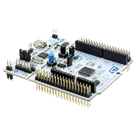
Development Boards & Kits - ARM STM32 Nucleo-64 development board STM32F411RE MCU, supports Arduino & ST morpho
Pricing & Availability
Distributor | Qty 1 |
|---|
Assets
NUCLEO-F411RE.step
NUCLEO-F411RE3D Model
NUCLEO-F411RE-removebg-preview.png
NUCLEO-F411RE-removebg-previewThumbnailkicad_mod
BOARD_NUCLEO-F411RE.kicad_mod
BOARD_NUCLEO-F411REFootprintControls
Welcome 👋
Flux accelerates your PCB design with AI.
Create your account to start using this component and bring your ideas to life.