Chat
Welcome to Flux
Treat Flux like your intern. Tell it what you'd like to build and it'll get to work. You can also ask it questions, brainstorm ideas, and teach it your preferences. Learn More
Explain project
Write a project description
Find schematic issues
Create a test plan
Simulate a circuit
Prepare for Manufacturing
Component Selection Workflow
New Subsystem Wizard
Write I2C initialization code
Generate firmware skeleton
U3
U9
U1
SUBLAYOUT1
how do I connect Arduino Uno R3 PINOUT and U4?

@copilot how do I connect Arduino Uno R3 PINOUT and U4?
1y
To connect the Arduino_Uno_R3_PINOUT to the IIS3DWB (U4), I suggest using the SPI interface. Here are the connections you can make based on typical SPI connections:
-
MOSI (Master Out Slave In):
- Connect Arduino Uno Pin (e.g., SPI MOSI) to U4:SDI (Pin 14).
-
MISO (Master In Slave Out):
- U4 does not have a dedicated MISO pin since typically it's an output only from the sensor. It might operate differently based on the specific configuration or part used, so typically you would leave MISO unconnected.
-
SCLK (Serial Clock):
- Connect Arduino Uno Pin (e.g., SPI SCK) to U4:SPC (Pin 13).
-
CS (Chip Select):
- Connect U4:CS (Pin 12) to an Arduino Pin (e.g., any digital pin) for Chip Select.
-
Power and Ground:
-
Interrupts:
-
SDO/SA0 (Slave Address bit in I2C):
- If SDO is being used to set the I2C address, connect it appropriately. However, since we're using SPI here, typically this pin isn't used.
Do these connections make sense for your project? Let me know if there are any specific configurations or constraints you have.
1y
Someone is typing...
9
please explain what J2 does.
@copilot please explain what J2 does.
1y
$J2$ appears to be a connector with 8 pins in your project. However, its specific role isn't clearly defined in the project description. It could be used for interfacing with other components or as an expansion interface. Here’s what we know from the schematic:
- It's connected to several nets, but the main roles or labels for these nets aren’t explicitly described.
- It has connections involving different power supplies like $+5V$, $+3V3$, $VIN$, and possibly a reset line.
- It also seems to have a ground connection (GND) as it includes J2:Pin6 and J2:Pin7.
Without additional context, $J2$ could be used for any number of purposes. Could you provide more details about what you intend to connect through this connector or what components it interfaces with? This would help determine its specific function in your circuit.
1y
Someone is typing...
4
how do I connect U9 and Arduino Uno R3 PINOUT ?
@copilot how do I connect U9 and Arduino Uno R3 PINOUT ?
1y
To connect the SIM800L module (U9) to an Arduino Uno R3, you'll want to follow these general guidelines. Make sure you adapt them if you're using different voltage levels, as the SIM800L operates at 3.3V logic:
Connections between SIM800L and Arduino Uno
-
Power Supply:
-
Communication:
-
Reset:
- Connect U9 to an available digital pin on the Arduino if you need to control the reset function. Otherwise, it can be left unconnected or connected to the 3.3V supply.
-
Optional:
- You can also connect U9 for power-saving features to a digital pin if required.
- Connect U9 to a 3.3V power source.
- Connect U9 to Arduino GND.
- Connect U9 to Arduino pin RX.
- Connect U9 to Arduino pin TX (with a level shifter if needed).
Let me know if you need further details or assistance!
1y
Someone is typing...
17
how do I connect Arduino Uno R3 PINOUT and U2?
@copilot how do I connect Arduino Uno R3 PINOUT and U2?
1y
To connect the Arduino Uno R3 to the U2, you need to establish the following connections:
-
Power Connections:
- Connect Arduino Uno:5V to U2:VDD (Pin 1).
- Connect Arduino Uno:GND to U2:GND (Pin 4).
-
Data Connection:
- Connect Arduino Uno:Digital Pin (suggest using Pin 2 for convenience) to U2:DATA (Pin 2).
-
Not Connected (as per DHT11 specification):
- U2:NC (Pin 3) is not connected.
These are the standard connections to interface a DHT11 sensor with an Arduino board. Make sure to add a pull-up resistor (usually 10kΩ) between the DATA pin and VDD to ensure proper data communication. Let me know if you need further assistance!
1y
Someone is typing...
19
how do I connect Arduino Uno R3 PINOUT and U6?
@copilot how do I connect Arduino Uno R3 PINOUT and U6?
1y
- Power: Connect U6:+VS to the 5V pin on the Arduino Uno.
- Ground: Connect U6:GND to the GND pin on the Arduino Uno.
- Signal: Connect U6:VOUT to one of the analog input pins on the Arduino Uno, such as A0.
Here's the connection format:
- Connect U6:+VS to Arduino Uno:5V.
- Connect U6:GND to Arduino Uno:GND.
- Connect U6:VOUT to Arduino Uno: A0.
Let me know if you need further assistance!
1y
Someone is typing...
22
list all J2 pins in a table format. For each pin provide its pin number, pin nam...
@copilot list all J2 pins in a table format. For each pin provide its pin number, pin name and function.
1y
Here's a table listing all the pins of J2, including their pin numbers, pin names, and inferred functions:
Table
| Pin Number | Pin Name | Function |
|---|---|---|
| 1 | Pin_1 | $undefined$ |
| 2 | Pin_2 | $undefined$ |
| 3 | Pin_3 | RESET |
| 4 | Pin_4 | +3.3V Supply |
| 5 | Pin_5 | +5V Supply |
| 6 | Pin_6 | GND |
| 7 | Pin_7 | GND |
| 8 | Pin_8 | VIN / Power In |
Please note that the actual functions of Pin_1 and Pin_2 are not defined in the provided project details. You can update their functions as required for your specific design.
1y
Someone is typing...
6
how do I connect LCD1 and Arduino Uno R3 PINOUT ?
@copilot how do I connect LCD1 and Arduino Uno R3 PINOUT ?
1y
To connect LCD1, which is a WC1602A, to an Arduino Uno, you will typically use a parallel or an I2C interface. If we assume you're using a parallel connection, which is common for 1602 LCDs, here's how you'd connect it to an Arduino Uno:
LCD1 (WC1602A) to Arduino Uno Connections
-
Power and Ground Connections:
- Connect LCD1:VSS (Pin 1) to Arduino:GND.
- Connect LCD1:VDD (Pin 2) to Arduino:5V.
-
Control Pins:
- Connect LCD1:RS (Pin 4) to Arduino digital pin 12.
- Connect LCD1:R/W (Pin 5) to Arduino:GND (assuming you write only).
- Connect LCD1:E (Pin 6) to Arduino digital pin 11.
-
Data Pins:
- Connect LCD1:D4 (Pin 11) to Arduino digital pin 5.
- Connect LCD1:D5 (Pin 12) to Arduino digital pin 4.
- Connect LCD1:D6 (Pin 13) to Arduino digital pin 3.
- Connect LCD1:D7 (Pin 14) to Arduino digital pin 2.
-
Backlight Control:
- Connect LCD1:LED(+) (Pin 15) to Arduino:5V through a suitable current-limiting resistor.
- Connect LCD1:LED(-) (Pin 16) to Arduino:GND.
- You're using the parallel interface method.
- Adjust digital pin numbers according to your specific requirements if needed.
- Ensure compatible voltage levels for power and signals.
If you prefer the I2C interface and have an appropriate I2C backpack, the connections will be simpler. Let me know if you're interested in that configuration instead!
1y
Someone is typing...
16
how do I connect Arduino Uno R3 PINOUT and U7?
@copilot how do I connect Arduino Uno R3 PINOUT and U7?
1y
To connect the Arduino Uno R3 PINOUT with the MLX90614ESF-ACC-000-SP (Designator U7), you typically use an I²C interface, as the MLX90614 is a digital temperature sensor with an I²C communication protocol.
Here are the connections you should make:
-
Power and Ground:
-
I²C Communication:
Here’s the connection summary:
- Connect Arduino Uno 5V to U7:VDD
- Connect Arduino Uno GND to U7:VSS
- Connect Arduino Uno SDA to U7:PWM_SDA
- Connect Arduino Uno SCL to U7:SCL_Vz
Please ensure you have pull-up resistors on the SDA and SCL lines if they are not already on the sensor board. Let me know if you need further details or have any adjustments based on your power supply!
1y
Someone is typing...
23
U4
LCD1
J2
RESET
VIN
U5
J3
J4
LED1
+3V3
BZ1
+5V
J1
Reviews

- Wirelessly connects nets on schematic. Used to organize schematics and separate functional blocks. To wirelessly connect net portals, give them same designator. #portaljharwinbarrozo43.0M
- Wirelessly connects power nets on schematic. Identical to the net portal, but with a power symbol. Used to organize schematics and separate functional blocks. To wirelessly connect power net portals, give them the same designator. #portal #powerjharwinbarrozo11.4M
- A generic fixed resistor ideal for rapid circuit topology development. Its footprint automatically adapts based on the selected package case code—supporting 0402, 0603, 0805, 1203, and many other standard SMD packages, as well as axial horizontal and vertical configurations. Save precious design time by seamlessly add more information to this part (value, footprint, etc.) as it becomes available. Standard resistor values: 1.0 ohm, 10 ohm, 100 ohm, 1.0k ohm, 10k ohm, 100k ohm, 1.0M ohm 1.1 ohm, 11 ohm, 110 ohm, 1.1k ohm, 11k ohm, 110k ohm, 1.1M ohm 1.2 ohm, 12 ohm, 120 ohm, 1.2k ohm, 12k ohm, 120k ohm, 1.2M ohm 1.3 ohm, 13 ohm, 130 ohm, 1.3k ohm, 13k ohm, 130k ohm, 1.3M ohm 1.5 ohm, 15 ohm, 150 ohm, 1.5k ohm, 15k ohm, 150k ohm, 1.5M ohm 1.6 ohm, 16 ohm, 160 ohm, 1.6k ohm, 16k ohm, 160k ohm, 1.6M ohm 1.8 ohm, 18 ohm, 180 ohm, 1.8K ohm, 18k ohm, 180k ohm, 1.8M ohm 2.0 ohm, 20 ohm, 200 ohm, 2.0k ohm, 20k ohm, 200k ohm, 2.0M ohm 2.2 ohm, 22 ohm, 220 ohm, 2.2k ohm, 22k ohm, 220k ohm, 2.2M ohm 2.4 ohm, 24 ohm, 240 ohm, 2.4k ohm, 24k ohm, 240k ohm, 2.4M ohm 2.7 ohm, 27 ohm, 270 ohm, 2.7k ohm, 27k ohm, 270k ohm, 2.7M ohm 3.0 ohm, 30 ohm, 300 ohm, 3.0K ohm, 30K ohm, 300K ohm, 3.0M ohm 3.3 ohm, 33 ohm, 330 ohm, 3.3k ohm, 33k ohm, 330k ohm, 3.3M ohm 3.6 ohm, 36 ohm, 360 ohm, 3.6k ohm, 36k ohm, 360k ohm, 3.6M ohm 3.9 ohm, 39 ohm, 390 ohm, 3.9k ohm, 39k ohm, 390k ohm, 3.9M ohm 4.3 ohm, 43 ohm, 430 ohm, 4.3k ohm, 43K ohm, 430K ohm, 4.3M ohm 4.7 ohm, 47 ohm, 470 ohm, 4.7k ohm, 47k ohm, 470k ohm, 4.7M ohm 5.1 ohm, 51 ohm, 510 ohm, 5.1k ohm, 51k ohm, 510k ohm, 5.1M ohm 5.6 ohm, 56 ohm, 560 ohm, 5.6k ohm, 56k ohm, 560k ohm, 5.6M ohm 6.2 ohm, 62 ohm, 620 ohm, 6.2k ohm, 62K ohm, 620K ohm, 6.2M ohm 6.8 ohm, 68 ohm, 680 ohm, 6.8k ohm, 68k ohm, 680k ohm, 6.8M ohm 7.5 ohm, 75 ohm, 750 ohm, 7.5k ohm, 75k ohm, 750k ohm, 7.5M ohm 8.2 ohm, 82 ohm, 820 ohm, 8.2k ohm, 82k ohm, 820k ohm, 8.2M ohm 9.1 ohm, 91 ohm, 910 ohm, 9.1k ohm, 91k ohm, 910k ohm, 9.1M ohm #generics #CommonPartsLibraryjharwinbarrozo1.5M
- A generic fixed capacitor ideal for rapid circuit topology development. You can choose between polarized and non-polarized types, its symbol and the footprint will automatically adapt based on your selection. Supported options include standard SMD sizes for ceramic capacitors (e.g., 0402, 0603, 0805), SMD sizes for aluminum electrolytic capacitors, and through-hole footprints for polarized capacitors. Save precious design time by seamlessly add more information to this part (value, footprint, etc.) as it becomes available. Standard capacitor values: 1.0pF, 10pF, 100pF, 1000pF, 0.01uF, 0.1uF, 1.0uF, 10uF, 100uF, 1000uF, 10000uF 1.1pF, 11pF, 110pF, 1100pF 1.2pF, 12pF, 120pF, 1200pF 1.3pF, 13pF, 130pF, 1300pF 1.5pF, 15pF, 150pF, 1500pF, 0.015uF, 0.15uF, 1.5uF, 15uF, 150uF, 1500uF 1.6pF, 16pF, 160pF, 1600pF 1.8pF, 18pF, 180pF, 1800pF 2.0pF, 20pF, 200pF, 2000pF 2.2pF, 22pF, 220pF, 2200pF, 0.022uF, 0.22uF, 2.2uF, 22uF, 220uF, 2200uF 2.4pF, 24pF, 240pF, 2400pF 2.7pF, 27pF, 270pF, 2700pF 3.0pF, 30pF, 300pF, 3000pF 3.3pF, 33pF, 330pF, 3300pF, 0.033uF, 0.33uF, 3.3uF, 33uF, 330uF, 3300uF 3.6pF, 36pF, 360pF, 3600pF 3.9pF, 39pF, 390pF, 3900pF 4.3pF, 43pF, 430pF, 4300pF 4.7pF, 47pF, 470pF, 4700pF, 0.047uF, 0.47uF, 4.7uF, 47uF, 470uF, 4700uF 5.1pF, 51pF, 510pF, 5100pF 5.6pF, 56pF, 560pF, 5600pF 6.2pF, 62pF, 620pF, 6200pF 6.8pF, 68pF, 680pF, 6800pF, 0.068uF, 0.68uF, 6.8uF, 68uF, 680uF, 6800uF 7.5pF, 75pF, 750pF, 7500pF 8.2pF, 82pF, 820pF, 8200pF 9.1pF, 91pF, 910pF, 9100pF #generics #CommonPartsLibraryjharwinbarrozo1.5M
- A generic fixed inductor suitable for rapid circuit topology development. The footprint automatically adapts based on the selected package, supporting standard SMD sizes (e.g., 0402, 0603, 0805) as well as well-known inductor packages such as SDR1806, PA4320, SRN6028, and SRR1260. Standard inductor values: 1.0 nH, 10 nH, 100 nH, 1.0 µH, 10 µH, 100 µH, 1.0 mH 1.2 nH, 12 nH, 120 nH, 1.2 µH, 12 µH, 120 µH, 1.2 mH 1.5 nH, 15 nH, 150 nH, 1.5 µH, 15 µH, 150 µH, 1.5 mH 1.8 nH, 18 nH, 180 nH, 1.8 µH, 18 µH, 180 µH, 1.8 mH 2.2 nH, 22 nH, 220 nH, 2.2 µH, 22 µH, 220 µH, 2.2 mH 2.7 nH, 27 nH, 270 nH, 2.7 µH, 27 µH, 270 µH, 2.7 mH 3.3 nH, 33 nH, 330 nH, 3.3 µH, 33 µH, 330 µH, 3.3 mH 3.9 nH, 39 nH, 390 nH, 3.9 µH, 39 µH, 390 µH, 3.9 mH 4.7 nH, 47 nH, 470 nH, 4.7 µH, 47 µH, 470 µH, 4.7 mH 5.6 nH, 56 nH, 560 nH, 5.6 µH, 56 µH, 560 µH, 5.6 mH 6.8 nH, 68 nH, 680 nH, 6.8 µH, 68 µH, 680 µH, 6.8 mH 8.2 nH, 82 nH, 820 nH, 8.2 µH, 82 µH, 820 µH, 8.2 mH #generics #CommonPartsLibraryjharwinbarrozo15.9k
- An electrical connector acting as reusable interface to a conductor and creating a point where external circuits can be connected.Terminal
- General Purpose Thick Film Standard Power and High-Power Chip Resistor 47 kOhms ±5% 0.125W, 1/8W Chip Resistor 0805 (2012 Metric) Automotive AEC-Q200 Thick Film Features: - RMCF – standard power ratings - RMCP – high power ratings - Nickel barrier terminations standard - Power derating from 100% at 70ºC to zero at +155ºC - RoHS compliant, REACH compliant, and halogen free - AEC-Q200 compliantjharwinbarrozo1.2M
- 10 µF 16 V Aluminum - Polymer Capacitors Radial, Can - SMD 30mOhm 2000 Hrs @ 105°C #commonpartslibrary #capacitor #aluminumpolymer #radialcanjharwinbarrozo1.2M


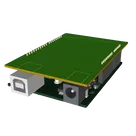
Template for Arduino Uno R3 Shield. Include an official pinout so you will always know Arduino names, the alternative roles of pins, which one is SDA, or SCL, etc. On PCB you can find the 3D model of the Arduino Uno R3 itself along with the board outline on the silkscreen.
#Arduino #Uno #Shield #Template #project-template #project
Properties
Properties describe core aspects of the project.
Pricing & Availability
Distributor | Qty 1 |
|---|---|
Arrow | $24.37–$25.60 |
Digi-Key | $28.38–$29.90 |
LCSC | $72.85–$72.88 |
Mouser | $31.22 |
Verical | $22.12–$22.80 |
Controls
Welcome 👋
Flux helps you build PCBs faster with an AI teammate!
Create your account to collaborate, stay updated, fork your own version, and get instant answers from our AI agent.
harikrishnanpg
copilot
- Connect U5:3.3V to the 3.3V pin on the Arduino Uno.
- Connect U5:GND to the GND pin on the Arduino Uno.
Communication (UART):- Connect U5:TXD0 to the RX (Digital Pin 0) on the Arduino Uno.
- Connect U5:RXD0 to the TX (Digital Pin 1) on the Arduino Uno.
Additional Considerations: