Chat

Welcome to Flux

Treat Flux like your intern. Tell it what you'd like to build and it'll get to work. You can also ask it questions, brainstorm ideas, and teach it your preferences. Learn More

Explain this part
Write a part description
Describe each pin
Operating conditions
Electrical max ratings
Part Specifications
Application circuits
Verify Part Details
Recommend similar parts
Check availability & lifecycle
how do I use Flux?

@copilot how do I use Flux?
2y
Using Flux, the electronics CAD program, involves several steps including part placement, schematic generation, PCB layout creation, and board inspection. Here are some general steps:
  1. Login and Start a New Project: You can start a new project in Flux by logging into your account and clicking on the "New Project" button.
  2. Part Placement: Select components from the built-in library and drag them onto the schematic canvas. You can search for parts by name, symbol, type, and other attributes.
  3. Schematic Generation: Connect the components together on the schematic canvas. This involves drawing nets (wires) to make the appropriate connections between pins of different components.
  4. PCB Layout Creation: Switch to the layout mode to place the parts on the PCB and route the traces. You can set the board's size and shape, place components, and route the electrical connections.
  5. Board Inspection and Export: Inspect your design for errors with the built-in design rule checker. If everything looks good, you can export your finished design to a manufacturing file format (Gerber, or others) which you can send to a fabrication house for manufacturing.
For more detailed information, consider consulting Flux's online resources:
  • Documentation: You can access Flux's documentation page for detailed information about the elements of Flux[1].
  • Tutorials: Flux has in-depth tutorials that can guide you on how to use it effectively[2].
  • Video Tutorials: Flux also provides video tutorials, crash courses, and recorded events on YouTube to aid in the learning process[3].
  • Slack Community: If you encounter any issues or have questions, the Slack community is a great resource where you can ask questions directly to the Flux team and interact with other engineers, designers, and hardware enthusiasts using Flux[4].
Remember that an AI assistant like myself, Flux copilot, is always available to provide guidance and suggestions based on the specifics of your circuit design. Remember to act on my suggestions by clicking on the "Take Action" button. This allows me to make suggested changes directly in your schematic[1].
2y
Someone is typing...
2
BISEN
VM
AIN2
BIN1
nFAULT
BOUT2
AISEN
AIN1
AOUT1
VCP
VINT
nSLEEP
GND
AOUT2
BOUT1
BIN2

No files yet

Documents

    Documents are markdown text files which describe project goals, capture details, or even simulation outputs.

    Assets

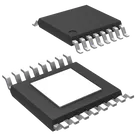
    16-HTSSOP.png

    16-HTSSOP.png

    16-HTSSOPThumbnail

    TSSOP-16-1EP_4.4x5mm_P0.65mm.kicad_mod

    FOOTPRINT_V5Footprint

    DRV8833PWP

    defaultDefault
    TSSOP-16-1EP_4.4x5mm_P0.65mm.step

    TSSOP-16-1EP_4.4x5mm_P0.65mm.step

    3D3D Model

    DRV8833PWP

    DRV8833PWP thumbnail
    Bipolar Motor Driver NMOS PWM IC PAR 16-TSSOP #CommonPartsLibrary #MotorDriver #IntegratedCircuit #DRV8833

    Properties

    Integrated Circuit

    Texas Instruments

    DRV8833PWP

    U

    Pricing & Availability

    DPN

    Stock

    Qty 1

    1

    0

    $0.00

    1

    0

    $1.428

    1

    216

    $2.69

    Controls