Chat

Welcome to Flux

Treat Flux like your intern. Tell it what you'd like to build and it'll get to work. You can also ask it questions, brainstorm ideas, and teach it your preferences. Learn More

Explain this part
Write a part description
Describe each pin
Operating conditions
Electrical max ratings
Part Specifications
Application circuits
Verify Part Details
Recommend similar parts
Check availability & lifecycle
how do I use Flux?

@copilot how do I use Flux?
1y
To use Flux for designing electronic circuit schematics and PCB layouts, you can follow these general steps:
  1. Create a Project: Start by creating a new project in Flux. This will be your workspace for designing your circuit.
  2. Place Components: Drag components from the library onto the canvas and drop them where you would like them to be placed[1].
  3. Connect Components: Connect the components by drawing wires between them. You'll do this in the schematic view to define the electrical connections.
  4. Simulate the Circuit: If you want to test your design, you can use the simulator to run your circuit and verify its behavior. This can help you detect any issues before proceeding to PCB design[2].
  5. Design the PCB Layout: Once your schematic is complete and verified, you can switch to the PCB layout view. This is where you arrange your components on the PCB and route the connections.
  6. Review and Export: After completing your design, review all connections and placements. Once everything is verified, you can export the design for manufacturing or further processing.
For additional resources and tutorials, you may want to check out video tutorials and other helpful content available on platforms like YouTube. Additionally, joining the Flux Slack community can be beneficial for getting support and connecting with other users[3].
1y
Someone is typing...
3
how do I use Flux?

No puedo usar los componentes
1y
@copilot how do I use Flux?
1y
To get started with using Flux, here are some steps you can follow:
  1. Create an Account: First, you'll need to visit the Flux website and create an account if you haven't already.
  2. Start a New Project: Once you're logged in, you can start a new project by creating a schematic and implementing your design.
  3. Place Components: You can place components in your schematic by dragging them from the library onto the canvas.
  4. Connect Components: Use the wire tool to connect your components. You can also have Flux's Copilot assist you with suggesting specific connections. You can even take action on Copilot's suggestions if prompted[1].
  5. Simulate the Circuit: You can simulate your circuit to ensure everything functions as expected. Flux has tools for running simulation models[2].
  6. Layout the PCB: After you're satisfied with your schematic, you can move on to laying out your PCB.
  7. Export and Manufacture: Once your design is complete, you can export the necessary files for manufacturing.
For additional help:
  • YouTube Tutorials: Explore Flux's library of video tutorials for more in-depth guidance.
  • Join the Slack Community: Connect with other users and the Flux team for support[3].
These steps should get you on your way to designing with Flux! Let me know if you need more specific information on any of these steps.
1y
Someone is typing...
2
New Comment

Someone is typing...
3
RETRIGGER
R
C
-TRIGGER
~Q
+TRIGGER
VSS
EXT.RESET
~ASTABLE
OSC_OUT
Q
VDD
R-C_COMMON
ASTABLE

To get started, talk to Flux or create a New Document.

Documents

    Documents are markdown text files which describe project goals, capture details, or even simulation outputs.

    Assets

    image-removebg-preview.png

    image-removebg-preview.png

    image-removebg-previewThumbnail
    stp

    CD4047BE.stp

    3D_CD4047BE3D Model
    kicad_mod

    DIP794W53P254L1930H508Q14N.kicad_mod

    FP_DIP794W53P254L1930H508Q14NFootprint

    CD4047BE

    CD4047BE thumbnail
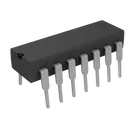
    Monostable Multivibrator 80 ns 14-PDIP #commonpartslibrary #integratedcircuit #multivibrator

    Properties

    Integrated Circuit

    Texas Instruments

    CD4047BE

    U

    Pricing & Availability

    Distributor

    Qty 1

    Controls