Review Issues Resolution
Thought for 1 min 35 sec
This is what the Flux documentation says about starting a trace and placing vias:
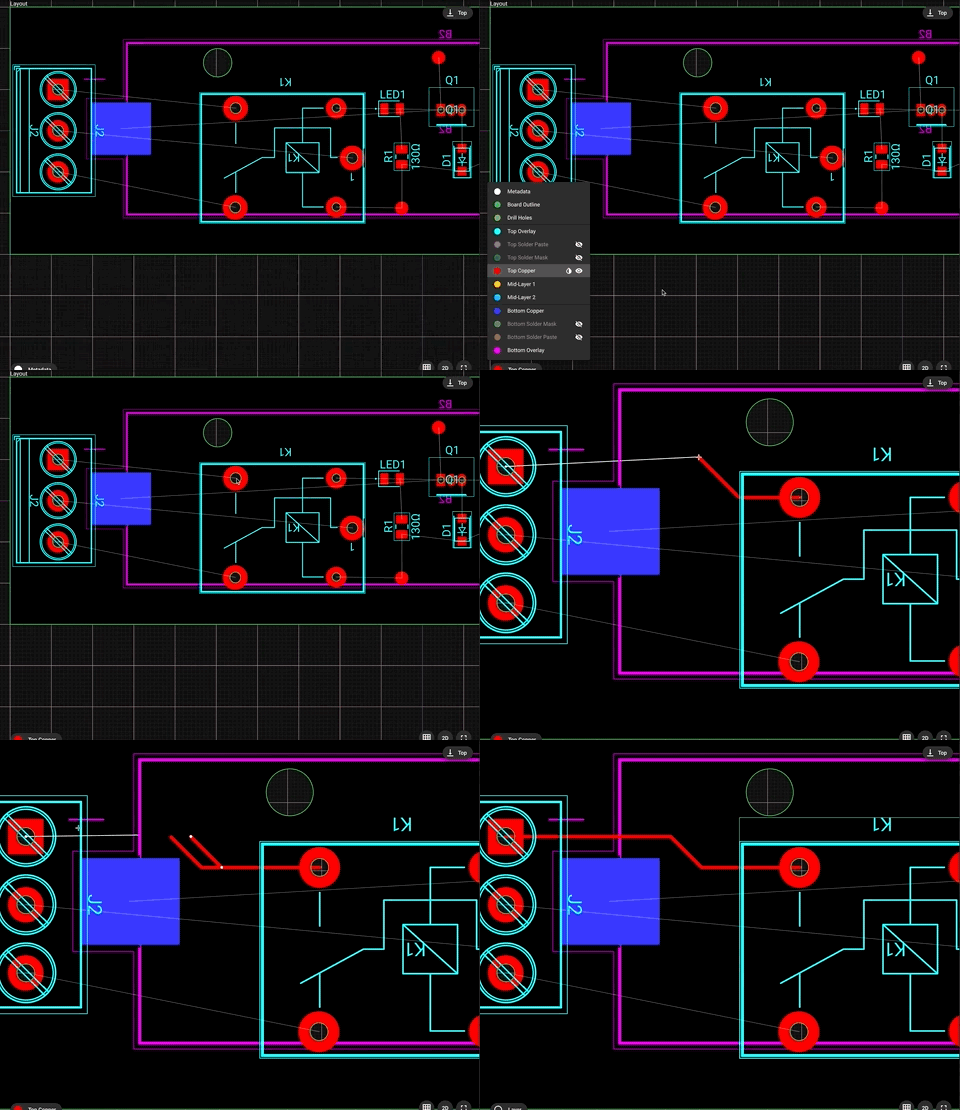
"How to Start a Trace
To begin creating a trace:
- Hover your cursor over the pad where you want to start routing.
- A small white dot will appear on the pad—this is the trace handle.
- Click the white dot to begin routing your trace.
- Move your cursor to define the path. Click to add waypoints, and double-click to finish the trace.
Image
Note: you can press the letter "F" at any time to change the direction of the trace angle (elbow).
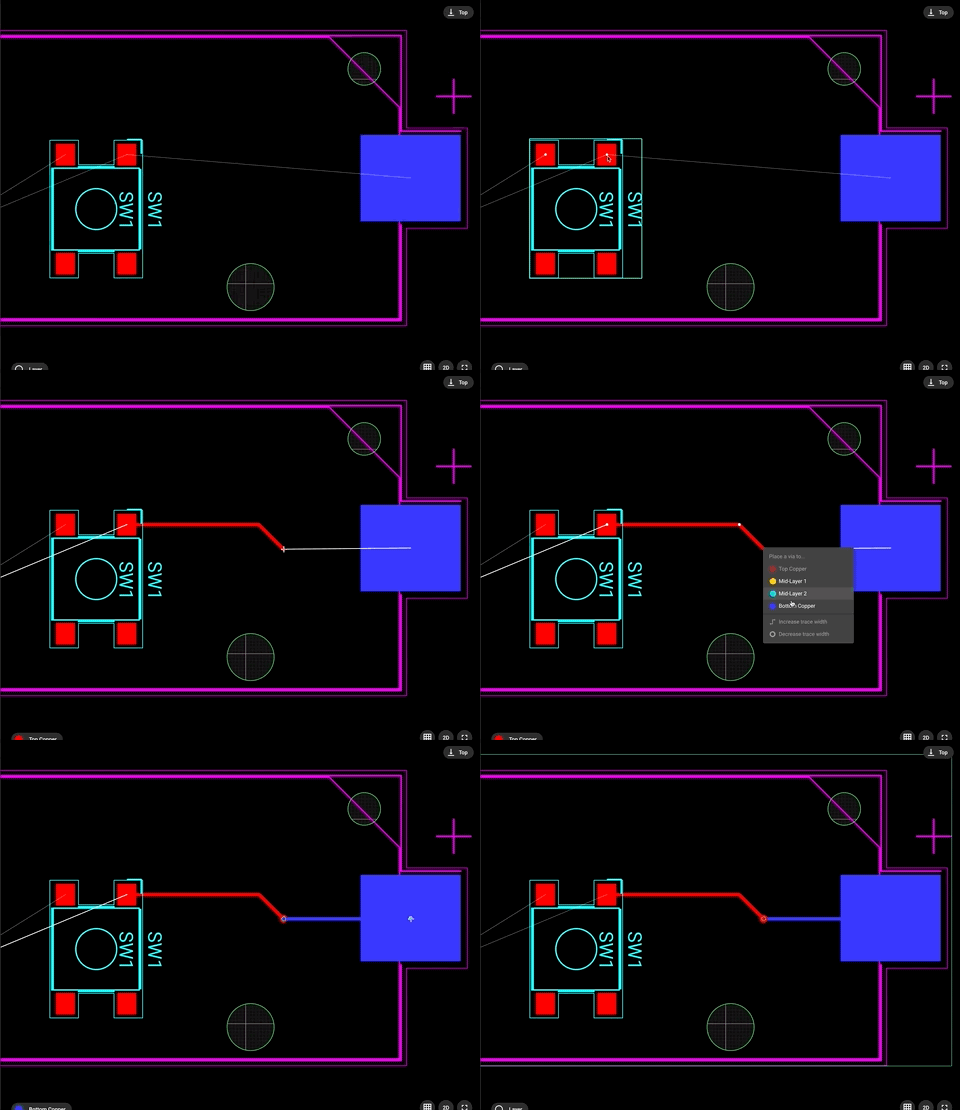
Placing vias
There are two main ways of adding vias:
- While in routing mode, you can right-click to select the target layer. Flux will automatically place a via and continue routing in the new layer
- With the "Layout" object selected, right-click and go to "Add"->"Via"
Image
Search auto-route
Enable autorouter
Auto-routing feature
Flux stopped
