Chat

Welcome to Flux

Treat Flux like your intern. Tell it what you'd like to build and it'll get to work. You can also ask it questions, brainstorm ideas, and teach it your preferences. Learn More

Explain this part
Write a part description
Describe each pin
Operating conditions
Electrical max ratings
Part Specifications
Application circuits
Verify Part Details
Recommend similar parts
Check availability & lifecycle
how do I use Flux?

@copilot how do I use Flux?
2y
To start using Flux, you can follow these general steps:
  1. Create an account: If you don't already have an account, sign up and choose a suitable plan.
  2. Familiarize yourself with the interface: Once logged in, you will be directed to the dashboard where you can see all your projects. Navigate around to get familiar with the buttons and functions.
    1. Schematic Editor: Here you can design and edit your electrical circuits. Typically, you would drag components from the library onto the canvas, connect them, and then assign values and labels.
    2. PCB Layout Editor: After creating your schematic, you would switch over to the PCB layout editor. This is where you place your components onto your board and route the traces.
  3. Begin your design: Start by creating a new project. Then proceed to the schematic editor where you can start building your circuit diagram.
  4. Watch tutorials and guides: It's recommended to watch some tutorials to better understand how to use the tool. Check out the Flux YouTube channel for a host of tutorials[1].
  5. Seek help, if needed: There are various resources available if you need support. Try the Flux Slack community for quick answers, and the issue-tracking tool for bug reporting. You could also request new features[2].
Take your time to explore and practice using Flux. The more you use it, the more comfortable you'll become with its features and tools.
2y
Someone is typing...
2
10
7
93
58
27
36
48
72
29
24
94
51
30
22
90
39
56
86
96
91
49
50
68
17
79
57
89
85
55
34
62
12
23
83
75
76
2
8
53
3
95
99
63
4
35
84
44
43
69
59
20
14
38
5
87
6
78
46
40
65
21
45
28
52
70
97
64
31
88
92
98
41
61
82
15
47
13
71
77
25
18
19
67
42
66
33
9
54
11
32
60
74
16
37
81
80
100
73
26
1

No files yet

Documents

    Documents are markdown text files which describe project goals, capture details, or even simulation outputs.

    Assets

    MDF40C-100DS-0.4V51.kicad_mod

    F-V5Footprint

    DF40C-100DS-0.4V51

    default
    DF40C-100DS-0.4V(51).png

    DF40C-100DS-0.4V(51).png

    DF40C-100DS-0.4V(51)Thumbnail
    DF40C-100DS-0.4V-51---3DModel-STEP-1.STEP

    DF40C-100DS-0.4V-51---3DModel-STEP-1.STEP

    3D3D Model

    DF40C-100DS-0.4V_51_-Symbol.svg

    DF40C-100DS-0.4V_51_-SymbolDefault

    DF40C-100DS-0.4V51

    DF40C-100DS-0.4V51 thumbnail
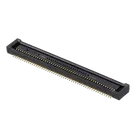
    100 Position Connector Receptacle, Center Strip Contacts Surface Mount Gold #RPI #CM4 #Connector

    Properties

    Connector

    Hirose Electric Co Ltd

    DF40C-100DS-0.4V51

    J

    Pricing & Availability

    No results found.

    Controls