Chat
Welcome to Flux
Treat Flux like your intern. Tell it what you'd like to build and it'll get to work. You can also ask it questions, brainstorm ideas, and teach it your preferences. Learn More
Explain this part
Write a part description
Describe each pin
Operating conditions
Electrical max ratings
Part Specifications
Application circuits
Verify Part Details
Recommend similar parts
Check availability & lifecycle
New Comment
Someone is typing...
2
create a high level mermaid block diagram of this project. Include key component...

2y
Sure, I'll create a high-level Mermaid block diagram for your project. Each block will represent a key component of the circuit, and I'll include the manufacturer part number where applicable.
Here's how it looks in Mermaid syntax:
Diagram
In this diagram:
- The central component is the STM8S003F3P microcontroller from STMicroelectronics.
- Power Supply is connected to the VDD pin of the microcontroller.
- A Capacitor is connected to the VCAP pin of the microcontroller.
- Various I/O ports are grouped under an IO_Ports subgraph, showing their connections to specific pins of the microcontroller.
- NRST and VSS pins are also highlighted for clarity.
You can visualize this diagram in a Mermaid-compatible viewer to see the blocks clearly.
2y
Someone is typing...
5
how do I use Flux?
i added this stm controller please add all the necessary components on the vcc of it
2y
2y
Using Flux.ai for designing electronic schematics and PCB layouts is a streamlined process. Here's a helpful guide to get you started:
1. Create an Account
- Visit Flux signup to register for an account. You can sign up using your email and password or link your Google account.
- Canvas: The central workspace where you'll create schematics and PCB layouts.
- Library: Contains components that you can drag and drop onto the canvas.
- Inspector: Allows you to modify properties of selected components.
- Toolbar: Provides tools for creating and editing your design.
- Drag components from the library onto the canvas.
- Position them as needed. You can rotate and move components to fit your design requirements.
- Use wires to connect component pins according to your schematic.
- Simply click on a pin and drag the wire to the destination pin.
- Switch to PCB layout mode to arrange components on a board.
- Route traces between component pads.
- Flux also offers simulation tools to test your circuit. Look at the tutorial for more information on how simulations run inside Flux.
- For support, you can join the Flux Slack community to ask questions and meet other users.
- Flux also offers a range of video tutorials and crash courses available on YouTube.
- When Copilot suggests specific connections on your schematic, use the "Take Action" button to apply those connections.
Would you like more details on any specific aspect of using Flux?
2y
Someone is typing...
4
No files yet
Reviews
Documents
Documents are markdown text files which describe project goals, capture details, or even simulation outputs.

STM8S003F3P
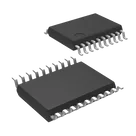
STM8 STM8S Microcontroller IC 8-Bit 16MHz 8KB (8K x 8) FLASH 20-TSSOP #microcontrollers #stm8
#commonpartslibrary
Properties
Microcontroller
STMicroelectronics
STM8S003F3P6
U
Parametric
Pricing & Availability
Distributor | Qty 1 |
|---|
Controls
Welcome 👋
Flux accelerates your PCB design with AI.
Create your account to start using this component and bring your ideas to life.
oguzz
copilot
oguzz
copilot