Chat

Welcome to Flux

Treat Flux like your intern. Tell it what you'd like to build and it'll get to work. You can also ask it questions, brainstorm ideas, and teach it your preferences. Learn More

Explain project
Write a project description
Find schematic issues
Create a test plan
Simulate a circuit
Prepare for Manufacturing
Component Selection Workflow
New Subsystem Wizard
Write I2C initialization code
Generate firmware skeleton
how do I use Flux?

@copilot how do I use Flux?
2y
To start using Flux, you'll want to begin by exploring the basics of the platform, including how to create and edit schematics, layout PCBs, and use the vast component library. Here's a quick starter guide to get you on your way:
  1. Access Flux: Open your favorite web browser and navigate to the Flux website. Create an account or log in if you already have one.
  2. Create a Project: Once you're logged in, start a new project by clicking on the option to create a new design. This will be your workspace for both schematic capture and PCB layout.
  3. Schematic Capture:
    • Use the component library to add parts to your schematic. You can search for components by name or category.
    • Place the components on the canvas and connect them using the wire tool to form your circuit.
  4. PCB Layout:
    • After completing the schematic, switch to the PCB layout view. Flux will automatically import the components and connections defined in your schematic.
    • Arrange the components on the PCB and manually draw traces, or use the auto-route feature to connect pins according to the schematic diagram.
  5. Import and Export:
    • Flux allows you to import designs from other CAD tools and export your finished designs in various formats compatible with manufacturing processes.
  6. Collaboration: Share your projects with others for collaborative editing or for review.
  7. Learning Resources:
    • To further explore the capabilities of Flux and to become proficient, take advantage of the tutorials and documentation available on the Flux website.
    • The Help and Tutorials section includes a range of resources from the first project walkthroughs to in-depth tutorials[1].
    • Flux also offers video tutorials on YouTube which can be highly beneficial for visual learners[2].
  8. Community Support:
    • If you have questions or need assistance, the Slack community is a great place to connect with other Flux users and the development team[3].
  9. Live Support: For direct assistance, you can contact the Flux support team through the contact information provided on their website[4].
This overview should help you get started with Flux. Don't hesitate to dive into the resources mentioned for a more comprehensive understanding and better mastery of this versatile tool.
2y
1
U1

No files yet

Documents

    Documents are markdown text files which describe project goals, capture details, or even simulation outputs.

    Assets

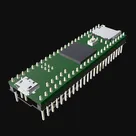
    RT1062-Teensy-thumn.png

    RT1062-Teensy-thumn.png

    RT1062-Teensy-thumnThumbnail

    RT1062 Teensy 4.1 Template 58MA

    RT1062 Teensy 4.1 Template 58MA thumbnail
    Template for RT1062 Teensy 4.1 series ARM® Cortex®-M7 MPU Embedded Evaluation Board #template #project-template

    Properties

    Properties describe core aspects of the project.

    Pricing & Availability

    Distributor

    Qty 1

    Digi-Key

    $33.08

    Mouser

    $38.75

    Controls