Chat

Welcome to Flux

Treat Flux like your intern. Tell it what you'd like to build and it'll get to work. You can also ask it questions, brainstorm ideas, and teach it your preferences. Learn More

Explain this part
Write a part description
Describe each pin
Operating conditions
Electrical max ratings
Part Specifications
Application circuits
Verify Part Details
Recommend similar parts
Check availability & lifecycle
how do I use Flux?

@copilot how do I use Flux?
2y
Using Flux involves several steps including setting up a project, creating or importing schematics, laying out PCBs, and routing connections. Here is a short guide to help you get started:
  1. Setup a project: First, you need to create a new project in Flux. Navigate to the homepage, tap on "Create New" and give a descriptive name for your project. This will open up the Flux editor where you can start designing your circuit.
  2. Create/Import schematics: You can either import an existing schematic in Flux or create a new one. You can draw symbols and lines to represent components and connections in your circuit respectively.
  3. Add components: Drag and drop components from the component library onto the canvas. Adjust the position of components by dragging them around and add connections by drawing wires between the connection points.
  4. Layout PCBs: Once you're happy with your schematic, you can advance to the layout stage. Here you transfer your design from schematic to a physical PCB layout. Adjust the size and shape of your board using the board outline tool, and place your components according to your schematic, ensuring that everything fits on the board.
  5. Route connections: Once your components are placed, you need to route the connections between them. Automatic and manual routing options are available depending on your requirements.
  6. Export the design: Once everything is done, you can preview and export your design in various formats for manufacturing purposes.
You can find detailed instructions about all these steps and more in the official Flux documentation[1]. If you prefer video tutorials, Flux's YouTube channel has a comprehensive library of step-by-step guides for using Flux[2].
Remember, the Flux community and support are always there to help you. If you need help, reach out to them anytime[3].
2y
Someone is typing...
2
the drag and drop function doesn't work

@copilot the drag and drop function doesn't work
2y
I'm sorry to hear you're having issues with the drag-and-drop function in Flux. Let's troubleshoot this:
  1. Browser Check: Ensure you are using a supported browser. Flux was designed for compatibility with major modern web browsers such as Google Chrome, Firefox, and Safari.
  2. Page Reload: Try reloading your browser page. This could solve temporary issues related to page loading.
  3. Software Versions: Certain browser extensions or outdated browser versions can interfere with Flux's performance. Make sure your browser is up-to-date and try disabling extensions if possible.
  4. Lock State: Confirm if the component you are trying to move is not locked. Locked components can't be moved.
  5. Selection: Ensure you have correctly selected the component before dragging.
    • Single Click on the component for selection[1].
    • Start dragging the selected component[2].
If you're still encountering issues, document the problem with as many details as possible and report it. The Flux team takes user problems very seriously and will strive to address them[3].
2y
Someone is typing...
3
2IN-
2IN+
VCC+
1OUT
2OUT
1IN+
VCC-
1IN-

To get started, talk to Flux or create a New Document.

Documents

    Documents are markdown text files which describe project goals, capture details, or even simulation outputs.

    Assets

    DIP-8_W7.62mm.png

    DIP-8_W7.62mm.png

    DIP-8_W7.62mmThumbnail
    kicad_mod

    DIP-8_W7.62mm.kicad_mod

    F-V5Footprint
    step

    DIP-8_W7.62mm.step

    3D3D Model
    DFN-8-1EP_3x3mm_P0.5mm_EP1.66x2.38mm

    DFN-8-1EP_3x3mm_P0.5mm_EP1.66x2.38mm

    defaultDefault

    TL082CP

    TL082CP thumbnail
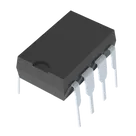
    J-FET Amplifier 2 Circuit 8-PDIP #CommonPartsLibrary #IntegratedCircuit #Linear #Amplifier #Op-Amp #TL082

    Properties

    Operational Amplifier (OP-AMP)

    Texas Instruments

    TL082CP

    U

    Pricing & Availability

    Distributor

    Qty 1

    Controls