Finding STM32F40 Components
Thought for 3 mins 21 sec
Here’s how to do both in Flux.
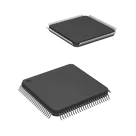
Placing the STM32F407VGT6 symbol
This is the most relevant entry I found related to placing a component:
“Generic components are available in the library and can be brought into schematics just like any other component. Flux currently has a generic capacitor, a generic resistor, and a generic inductor.
To add a generic component to your design:
Open a project and locate the library search bar in the top left.
Type "generic" and the type of part you're looking for. For example, "generic capacitor" or "generic inductor".
The top result should be the one you're looking for.
Drag and place the generic component on your schematic as you would any other component.
Pro tip: You can quickly verify if a part is a generic by changing the "Package" property and see that the footprint gets automatically updated.”
Source: https://docs.flux.ai/flux/tutorials/tutorial-generic-part#adding-a-generic-component
Apply the same steps for a real part: search for STM32F407VGT6 in the Library panel, then drag it onto your schematic.
Finding the SWD pins on the symbol
I could not find Flux documentation that describes a pin search or filtering UI to locate specific pins on a placed symbol. This likely means there is no documented pin-finder feature in the Inspector at this time. You can browse the symbol’s pin names directly on the canvas and in the Inspector panels.
- Flux Documentation: https://docs.flux.ai/Introduction/the-flux-method
- Documentation Search Results: https://docs.flux.ai/?s=pins
- Flux User Community: https://www.flux.ai/p/slack-community
Want me to list the exact SWD pins (SWDIO, SWCLK, optional SWO, NRST) from the ST datasheet for STM32F407VGT6? I can, but I need an accessible datasheet URL. The one on ST’s site is currently not retrievable from here. Paste an alternate link, and I’ll extract the pins verbatim. Alternatively, if you prefer, say “use typical STM32F4 SWD mapping” and I’ll provide the commonly used pins, marked as “typical” until we can confirm against the datasheet.
Based on Flux knowledge base guidance: when designing with STM32, remember to include a small SWD header or test pads for programming and bring out NRST along with SWDIO/SWCLK (and SWO if you want trace).
Ask for typical SWD pins
Confirm part choice
Request SWD header wiring
Ask how to inspect pins
Add SWD test pads
To get started, talk to Flux or create a New Document.

Welcome 👋
Flux accelerates your PCB design with AI.
Create your account to start using this component and bring your ideas to life.