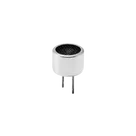
Attach STEP File as Default 3D Model
Thought for 5 sec
To publish this Flux project/part:
- Open the project page.
- Click Share or the project visibility/publish control in the top-right.
- Choose Publish / Make public.
- Fill in the part/project metadata if prompted: name, description, tags, manufacturer/MPN if applicable.
- Confirm publishing.
For this specific project, make sure the STEP asset is attached as the default 3D model before publishing so the public part includes the 3D preview.

there is no pulish button : Choose Publish / Make public.
Thought for 6 sec
You’re right — Flux may not show a literal Publish button.
Try this path instead:
- Open the project.
- Click Share in the top-right.
- Change visibility from Private to Public.
- If this is meant to become a reusable library part, look for Submit to Common Parts Library / Add to Library / Publish as part in the part or project menu.
If you don’t see any visibility or library option, it may require Flux support or a permissions/workspace setting. Use: https://docs.flux.ai/Introduction/getting-support
Verify publishing workflow
Review part completeness
Export part files
Check asset visibility
To get started, talk to Flux or create a New Document.