i3dman420311 / s4 ledrgb

Loaded

0

0

Files

Schematic

PCB

Log InSign Up

Creating a 20mm Hole

i3dman420311

i3dman420311

how do i make a hole 20mm
109 days

flux

1:35

Determining user needs.

Analyzing mounting hole specifications.

Guiding with help resources.

Clarifying component linking rules.

Reading docs about How to add a large mechanical hole or board cutout in the PCB layout, e.g., a 20 mm diameter hole. Include steps for placing a mounting hole footprint, setting non-plated vs plated, and editing drill diameter. Also cover how to create a circular board cutout if needed..

Reading docs about How to set the hole drill diameter for a pad or hole in the PCB editor (e.g., making the hole size 20 mm). Where to find and change drill size in the toolbar or inspector..

Asking for clarification.

Here’s what the Flux documentation says about adding a hole and setting its size:
“Adding a Standalone Hole
You might want to add a hole that isn't associated with any net. This done just like adding a standalone pad:
From the PCB canvas:
  1. Right click the PCB canvas to trigger the Context Menu.
  2. Hover over Add in the Context Menu to reveal a submenu.
  3. Click Pad in the submenu.
  4. In the toolbar which shows up above the pad on the canvas, click Pad Type. (Look for the square icon.)
  5. Select HOLE.”
“Configuring a Pad
Configure a Pad using the Toolbar
Configuring a pad is easy with the toolbar. When a pad is selected on PCB, a toolbar shows up above it on the canvas. From there, you can change its position, size, pad type, pad shape, and hole size.”
Source
Clarify units
Ask about board cutout
Multiple holes
Design rule concern
Large vs small holes
109 days

​
Sign up to send

To get started, talk to Flux or create a New Document.

Reviews

Documents

    Documents are markdown text files which describe project goals, capture details, or even simulation outputs.

    Assets

    GOOD LED OUTLINE.svg

    GOOD LED OUTLINE.svg

    GOOD LED OUTLINEDefault

    s4 ledrgb

    s4 ledrgb thumbnail
    Welcome to your new project. Imagine what you can build here.

    Properties

    Properties describe core aspects of the project.

    Pricing & Availability

    Distributor

    Qty 1

    Controls

    Welcome 👋

    Flux helps you build PCBs faster with an AI teammate!

    Create your account to collaborate, stay updated, fork your own version, and get instant answers from our AI agent.
        Introducing AI Placement!
        AI Placement Demo

        AI-Powered Component Placement

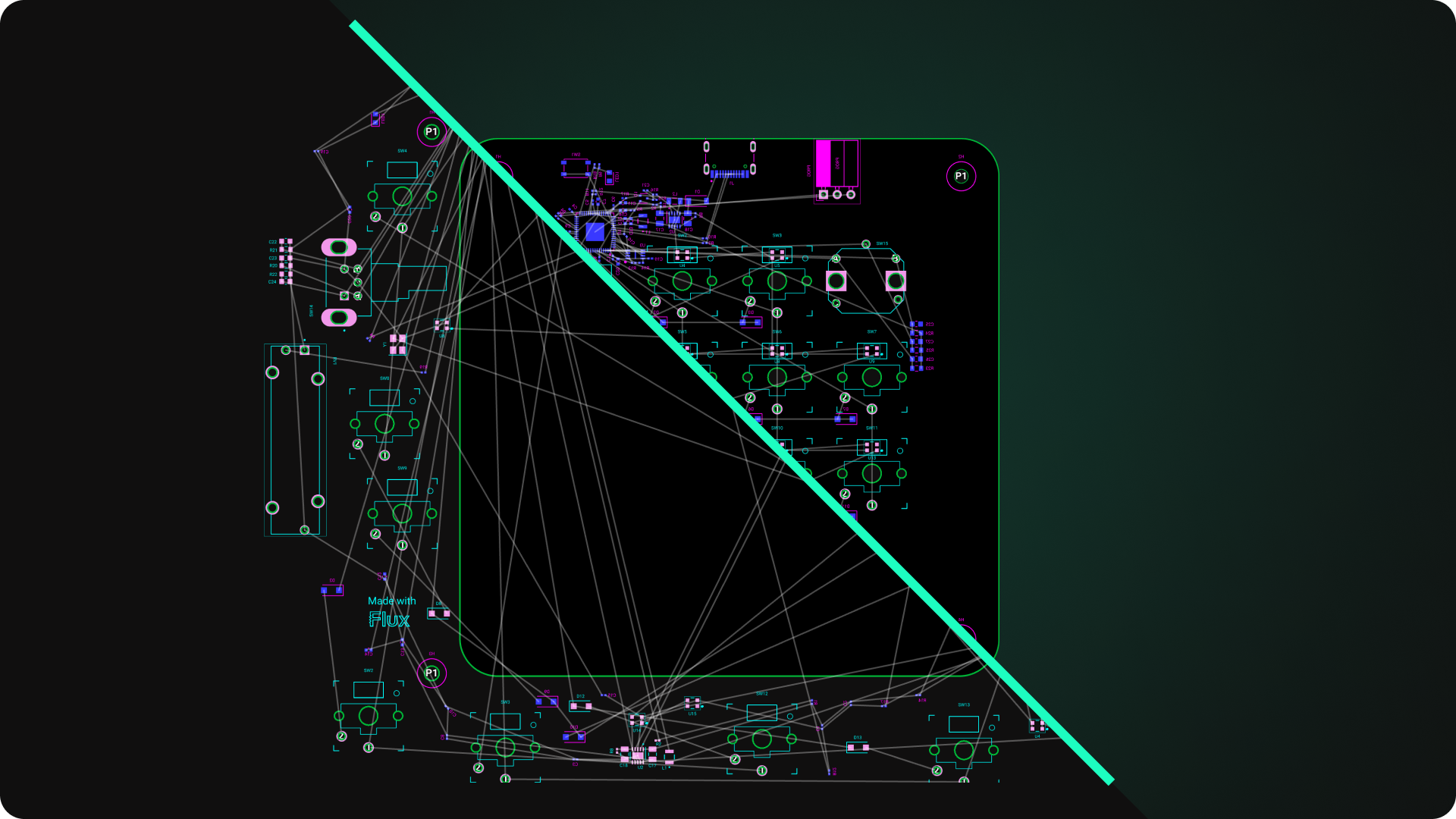
        Let AI place your components intelligently. AI Placement analyzes your schematic and positions components for optimal routing, signal integrity, and board density.

        From Schematic to Layout in Seconds

        Skip the tedious manual placement. AI Placement generates a starting layout you can refine, saving hours of repetitive work on every new design.

        Works With Auto-Layout

        Pair AI Placement with Auto-Layout for a complete AI-driven PCB design flow — from component placement through trace routing, all with one click.

        Try it