Publishing a Part in Flux

how to publish a newly created part?
268 days

0:54

Reading docs about How to publish a newly created part in Flux.

Here’s exactly what the Flux documentation says about publishing a newly created part to the library:
6- Publishing to the Library
The final step is to publish your part to the library. Publishing is important because new projects in Flux don’t show up in the library by default. You have to intentionally choose to share them there.
  • Type ⌘P on Mac or Ctrl P on Windows, or
  • Click on the Flux Menu in the upper left corner of the screen
  • Choose “Publish to Library...”
  • Select “Publish”
Image

Image

Find published part
Update published part
Set part metadata
Publish to team
268 days

To get started, talk to Flux or create a New Document.

Documents

    Documents are markdown text files which describe project goals, capture details, or even simulation outputs.

    Assets

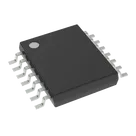
    BQ34Z100PWR-R2

    BQ34Z100PWR-R2

    BQ34Z100PWR-R2 Symbol.svgDefault
    stp

    BQ34Z100PWR-R2.stp

    3D_BQ34Z100PWR-R23D Model
    BQ34Z100PWR-R2-thumb.png

    BQ34Z100PWR-R2-thumb.png

    BQ34Z100PWR-R2-thumbThumbnail
    kicad_mod

    SOP65P640X120-14N.kicad_mod

    FP_SOP65P640X120-14NFootprint

    BQ34Z100PWR-R2

    BQ34Z100PWR-R2 thumbnail
    Battery Battery Monitor IC Multi-Chemistry 14-TSSOP #CommonPartsLibrary #IntegratedCircuit #PowerManagement #Battery-Management #BQ34Z100

    Properties

    BQ34Z100PWR-R2

    Texas Instruments Inc.

    U

    Integrated Circuit

    Pricing & Availability

    Distributor

    Qty 1

    Controls